
Your smartphone is one of the most versatile pieces of technology you already own, yet most people use only a fraction of what it can do. Beyond calling, messaging, and scrolling social feeds, a modern phone is a pocket-sized computer packed with sensors, cameras, radios, and software that can quietly improve daily life at home. With a little curiosity, you can turn it into a security helper, a productivity station, a creative studio, or even the brain of a small smart home.
The best part is that most of these ideas do not require expensive gadgets or advanced technical skills. Many work with built-in apps, free downloads, or accessories that cost less than a dinner out. This guide walks through practical smartphone technology ideas worth trying at home, with realistic setup tips, examples, and safety considerations so you can experiment confidently and get real value from a device you already carry every day.
Turn Your Phone Into a Home Security Helper
An old smartphone sitting in a drawer can become a surprisingly capable security tool. Because it already has a camera, microphone, Wi-Fi, and a battery, it can serve as a basic surveillance device with minimal setup. You do not need to subscribe to a dedicated security service to get useful coverage of a single room, a porch, or a child’s bedroom.
Repurpose an Older Phone as a Camera
Install a reputable monitoring app such as Alfred, AtHome Camera, or Manything on both the old phone (camera) and your current phone (viewer). Mount the older device on a small stand near a window, doorway, or nursery, plug it into power, and you have a live feed accessible from anywhere. Many apps include motion detection, two-way audio, and short cloud clips on the free tier.
Simple Privacy and Placement Tips
- Use a dedicated email and a strong, unique password for the monitoring account.
- Enable two-factor authentication and check which devices have access each month.
- Point cameras only at your own property; avoid filming neighbors or shared hallways.
- Disable cloud uploads if you prefer local-only viewing on the same network.
- Place the phone where airflow is good, since constant streaming can cause overheating.
Use Smartphone Sensors for Everyday Measurements
Modern phones contain a remarkable array of sensors that go far beyond entertainment. With the right free apps, those sensors become household tools you would otherwise need to buy separately. This is one of the easiest ways to get more value from technology you already own.
Sensors You Probably Forgot About
- Accelerometer and gyroscope: level pictures, align shelves, or check whether a washing machine is balanced.
- Camera: scan documents, read QR codes, measure dimensions with AR rulers, or identify plants and household objects.
- Microphone: estimate noise levels in decibels, tune a guitar, or record ambient sound for sleep tracking.
- Compass and magnetometer: orient solar panels, satellite dishes, or simply hang a picture facing a specific direction.
- Light sensor: check whether a workspace has enough lux for reading or video calls.
- Flashlight: pair with a magnifier app to inspect small parts or read fine print.
Practical Examples to Try
Use a bubble-level app when mounting a TV, a document scanner like Microsoft Lens or Adobe Scan to digitize receipts and warranties, and a sound meter app to find the quietest spot for a home office. Each of these replaces a single-purpose tool you might otherwise buy and store in a drawer.
Create a Smarter Remote Control Setup
One of the most satisfying upgrades you can make is consolidating remotes. Instead of juggling four or five physical clickers, your phone can become a central hub for the entertainment system, lights, and appliances around the house.
Control TVs, Speakers, and Streaming Devices
Most smart TVs, soundbars, and streaming sticks ship with companion apps that mirror their physical remotes. Apple TV Remote, Google Home, Roku, Samsung SmartThings, and LG ThinQ all work over Wi-Fi, often without needing the original remote nearby. For older devices, a few phones still include an infrared blaster, and universal IR remote apps can replace several traditional remotes at once.
Smart Lights, Plugs, and Appliances
Inexpensive Wi-Fi or Zigbee bulbs and smart plugs let you switch lamps, fans, or kettles on and off from your phone. Group them into scenes like Movie Night, Dinner, or Away so a single tap reconfigures the room. Pair the same devices with a voice assistant such as Google Assistant, Alexa, or Siri Shortcuts for hands-free control while cooking or working.
Tips for a Reliable Setup
- Keep smart devices on the 2.4 GHz Wi-Fi band where most of them perform best.
- Name rooms and devices clearly, since voice control depends on consistent labels.
- Group everything inside one ecosystem app so automations can interact across brands.
- Document Wi-Fi credentials and account logins in a password manager for easy recovery.
Build a Simple Productivity Station
A phone propped on a desk with the right accessories can rival a small laptop for everyday tasks. Whether you study from home, run a side project, or simply want a tidier workflow, a phone-based productivity station is inexpensive and surprisingly capable.
Hardware That Makes a Big Difference
- A sturdy adjustable stand to keep the screen at eye level.
- A Bluetooth keyboard and mouse for fast typing and editing.
- A USB-C hub if your phone supports desktop mode, so you can connect a monitor.
- Wired or wireless earbuds with a microphone for calls and dictation.
Software Routines That Save Time
Combine a notes app such as Notion, Obsidian, or Apple Notes with a cloud drive, a calendar, and a focus mode. Schedule deep-work blocks using Do Not Disturb or a Pomodoro app, then switch to a separate Work profile or Focus that hides social apps. Use document scanning for paperwork, voice typing for long-form notes, and shared albums to collaborate on visual projects without sending huge attachments.
Try Creative Photo, Video, and Audio Projects
Smartphone cameras have advanced to the point where they handle creative projects that once required dedicated gear. Doing these at home is a fun way to learn while producing content you can actually use.
Photography Experiments
- Product photos: shoot items for resale on a neutral background with window light, then edit in Snapseed or Lightroom Mobile.
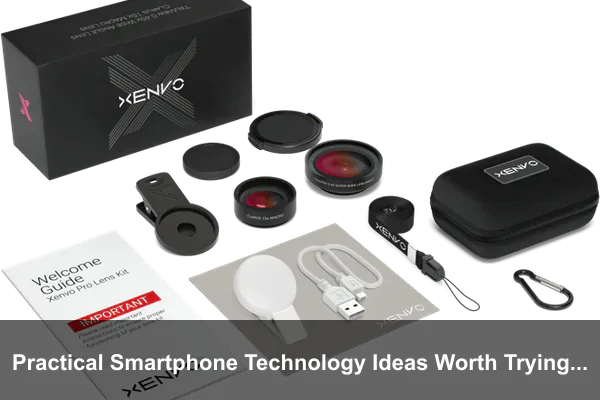
- Macro: use a clip-on lens or your phone’s dedicated macro mode to photograph plants, watches, or food details.
- Light painting: in a dark room, use a long-exposure app and a small flashlight to draw patterns in the air.
Video and Time-Lapse Ideas
Mount the phone on a tripod and capture a sunset, a plant blooming, or a room being cleaned as a time-lapse. Film a short room tour or a how-to clip using built-in stabilization and external microphones. For higher quality, explore LOG video where supported, then color-grade in mobile editors like CapCut or LumaFusion.
Audio Projects at Home
Record a short podcast episode or audiobook chapter using a lavalier microphone connected via USB-C. Apps such as GarageBand, Anchor, or Dolby On clean up background noise automatically. Soft furnishings, closets full of clothes, or a blanket draped behind you can dramatically improve recording quality without a real studio.
Make Daily Routines Easier With Automation
Automation sounds intimidating, but on a smartphone it usually means stringing together a few existing features so they trigger automatically. The result is fewer taps, fewer forgotten tasks, and a household that feels a step ahead of you.
Quick Wins With Built-In Tools
- Apple Shortcuts and Google Routines can launch playlists, adjust brightness, or send messages on a schedule.
- NFC tags placed on a desk, bedside table, or car dock can switch profiles when tapped.
- Location-based triggers can lower the volume when you arrive home or start a grocery list when you visit a supermarket.
- Bedtime routines can dim screens, silence notifications, and queue alarms automatically.
Sample Home Automations
- Tap an NFC tag near the door to start a podcast and switch the phone to silent.
- When connected to the kitchen speaker, automatically open a recipe app and set a 10-minute timer.
- At 10 p.m., enable grayscale, turn off the living room lights, and start a sleep soundscape.
- When leaving home, send a message to a family member confirming you departed.
Start with one automation and live with it for a week. If it survives that long, keep it; if it becomes annoying, tweak the trigger before adding more.
Reuse an Old Smartphone Instead of Storing It Away
Old phones rarely fetch much when sold, and they often sit unused in a drawer. With a little imagination, an older device can keep working for years in a new role around the house, saving you money and reducing electronic waste.
Practical Second-Life Ideas
- Kitchen recipe screen: mount it under a cabinet for hands-free cooking instructions and timers.
- Dedicated music player: pair it permanently with a Bluetooth speaker and load offline playlists.
- Digital photo frame or clock: rotate family photos or display a large clock face beside the bed.
- Offline navigation backup: store downloaded maps for travel, hikes, or power outages.
- Video call station: keep it on a stand near the couch so grandparents can always join.
- E-reader: with a paper-like display mode and a reading app, it becomes a focused reading device.
Prepare the Phone Properly
Before assigning a new role, factory reset the device, install only the apps it needs, sign in with a separate or limited account, and remove sensitive data. Disable mobile data if it will only run on Wi-Fi, and keep it plugged into a reliable charger if it will be on continuously.
Safety, Privacy, and Battery Tips Before You Start
Most of these ideas are safe, but a few precautions help you avoid common pitfalls. Treat your phone like the powerful, internet-connected device it is and most issues never appear.
Account and App Security
- Download apps only from official stores and check reviews before granting permissions.
- Review microphone, camera, and location permissions every few months.
- Enable two-factor authentication on every important account, especially those tied to smart home devices.
- Avoid signing into shared family accounts on phones that will be left unattended.
Heat, Charging, and Battery Health
Always-on use, like running a security camera or time-lapse, can stress the battery. Keep the phone ventilated, avoid direct sunlight, and remove thick cases when it will record for long stretches. If the device must stay plugged in constantly, look for charging limit settings that cap the battery at 80 percent to slow long-term wear.
Placement Around the Home
- Keep phones away from sinks, stoves, and humid bathrooms unless they are rated for moisture.
- Secure cables so children or pets cannot pull devices off shelves.
- Position cameras to respect family members’ privacy and post a small note if guests are recorded.
Putting It All Together
The most rewarding way to explore these ideas is to pick one project, try it for a few days, and see how it fits your life before moving on. Maybe you start by repurposing an old phone as a kitchen recipe screen, then add a smart plug for the coffee maker, then create a morning routine that switches on the lights and reads the weather. Small wins build the habit of looking at your phone as a flexible tool rather than just a communication device.
Practical smartphone technology ideas worth trying at home are about getting more from what you already own. They reduce the need for single-purpose gadgets, encourage creativity, and often improve safety and convenience at the same time. With sensible privacy habits and a little patience, a single phone, or one you were about to retire, can quietly become one of the most useful pieces of equipment in your household.
