
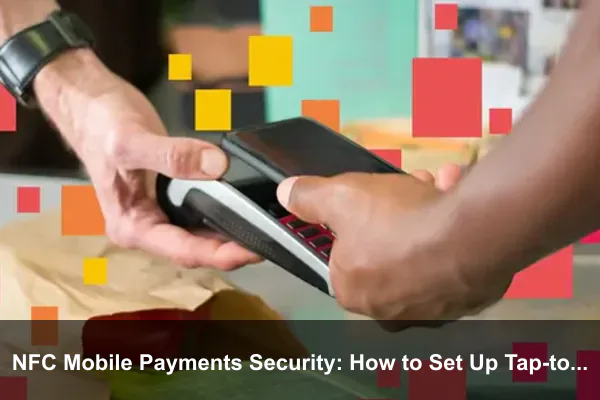
NFC Mobile Payments Security: How to Set Up Tap-to-Pay Safely on Your Phone is not just a convenience topic. Your phone may now be the payment method you use most often at stores, transit gates, restaurants, parking meters, vending machines, and event venues. That makes tap-to-pay security worth understanding before you add your first card or hand your unlocked phone to someone else.
The good news is that NFC mobile payments are designed to be safer than swiping or inserting a physical card in many everyday situations. Modern wallets such as Apple Pay, Google Wallet, and Samsung Wallet use tokenization, device authentication, and transaction-specific security data so the merchant normally does not receive your actual card number. The risk is not that every nearby person can silently drain your account. The practical risks are more specific: a weak phone lock, a stolen unlocked device, a fake support message, a rooted or uncertified phone, a careless Express Mode setting, or missed fraud alerts from your bank.
This guide focuses on a unique angle: how to set up tap-to-pay as a secure payment workflow, not just how to turn on NFC. You will learn what happens during a contactless payment, which settings matter on iPhone and Android, what to check before using your phone at a terminal, and what to do if your device is lost or stolen. The recommendations align with official guidance from Apple Pay security and privacy, Google Wallet tap-to-pay setup, Samsung Wallet security, and payment-tokenization standards from EMVCo.
What Happens When You Tap Your Phone to Pay
NFC stands for near field communication, a short-range wireless technology built for close-proximity actions. In mobile payments, the phone and payment terminal communicate only when you hold the device very close to the reader. Unlike Wi-Fi or Bluetooth, NFC is not meant for room-scale connections. That close range is helpful, but it is not the whole security model.
The payment card is not simply copied to your phone
When you add a card to a mobile wallet, the wallet, card network, and card issuer work together to provision a payment token. A token is a substitute value tied to your device or wallet environment. In Apple Pay, Apple describes this as a Device Account Number plus a dynamic security code. In Google Wallet and Samsung Wallet, the same broad idea applies: your real card number is replaced with wallet payment credentials that are safer to use at terminals.
This matters because a tokenized mobile payment is not the same as broadcasting the number printed on your card. If payment data from one transaction were captured, it should not be reusable like a static card number. Payment-token systems also rely on dynamic cryptograms or domain controls, a point emphasized by the PCI Security Standards Council.
Your phone must prove that it is allowed to pay
A secure tap-to-pay setup has two layers. First, the wallet has to hold a valid payment credential. Second, the phone has to confirm that the person using it is authorized. On iPhone, that usually means Face ID, Touch ID, or passcode confirmation, except for specific Express Mode use cases such as some transit cards. On Android, Google Wallet requires a screen lock and may require verification with a PIN, pattern, password, fingerprint, or supported high-security biometric method.
That authentication layer is why your lock screen is not a minor preference. It is a payment-control boundary. A six-digit passcode, strong device password, reliable biometric unlock, and current operating system updates all support NFC mobile payments security more than any case, sleeve, or NFC-blocking accessory.
The Real Risks of NFC Mobile Payments
Tap-to-pay fear often focuses on dramatic scenarios, such as someone standing nearby and secretly charging your phone. In practice, the more realistic threats are ordinary account and device security failures. Understanding the difference helps you protect the parts that matter.
Risk 1: A stolen phone with weak authentication
If your phone uses a guessable PIN such as 123456, a simple pattern, or no meaningful lock at all, the wallet is only as safe as that weak barrier. A thief does not need to break NFC encryption if they can unlock your device, open your banking app, read your messages, reset passwords, or approve payments. Strong device authentication is the foundation of tap-to-pay safety.
Risk 2: Social engineering and fake wallet alerts
Many payment attacks do not start at the NFC terminal. They start with a text, email, phone call, or fake website claiming your wallet has been blocked. The message may pressure you to reveal a one-time code, card verification code, banking password, Apple Account password, Google Account password, or Samsung Account password. No legitimate wallet setup requires you to give a verification code to a stranger over chat or phone.
Risk 3: Untrusted device software
Rooted phones, unlocked bootloaders, unofficial ROMs, outdated security patches, and uncertified Android builds can break the trust model that payment wallets depend on. Google Wallet checks whether a device meets security requirements. Apple also ties Apple Pay to supported hardware, current software, and device security features. If you modify the phone in ways that weaken system integrity, tap-to-pay may stop working or become a poor idea for financial use.
Risk 4: Lost control of account recovery
Your mobile wallet is connected to identity systems: Apple Account, Google Account, Samsung Account, bank app, email, phone number, and sometimes SMS verification. If someone can take over your email or SIM, they may be able to interfere with payment recovery, card provisioning, or bank alerts. Wallet safety therefore includes account security, not only NFC settings.
Before You Set Up Tap-to-Pay: Security Checklist
Do this checklist before adding a payment card. It takes a few minutes and prevents most avoidable NFC mobile payment problems.
- Update your phone. Install the latest available iOS or Android security update for your device.
- Use a strong screen lock. Prefer a longer PIN, alphanumeric password, or strong biometric unlock with a secure passcode fallback.
- Enable account protection. Turn on two-factor authentication for your Apple Account, Google Account, Samsung Account, and banking app.
- Confirm device integrity. Avoid tap-to-pay on rooted, jailbroken, uncertified, or heavily modified phones.
- Review lock-screen access. Limit sensitive notifications, message previews, and quick settings that could help a thief.
- Set bank alerts. Enable instant transaction notifications from your bank or card issuer.
- Remove old cards. Keep only cards you actually use in the wallet to reduce confusion and exposure.
- Know your recovery path. Make sure Find My on iPhone or Find Hub on Android is enabled before you need it.
Tip: Treat wallet setup like adding a key to your house. The technology is strong, but the surrounding habits decide how useful that strength is.
How to Set Up Tap-to-Pay Safely on iPhone
Apple Pay is deeply integrated into iPhone hardware and software, which makes setup straightforward. The safest setup is the one that uses Apple Wallet with current iOS, a supported card, strong authentication, and clear lost-device controls.
1. Prepare your iPhone
Before adding a card, update iOS and confirm that Face ID, Touch ID, or a strong passcode is enabled. Apple states that Apple Pay requires a compatible device, supported card, Apple Account, and device authentication such as Face ID, Touch ID, Optic ID, or passcode. If you remove the passcode or sign out of iCloud, payment cards can be removed from that device, which is a useful safety mechanism but also a sign that your wallet depends on device security being active.
2. Add your card through Wallet or your bank app
- Open the Wallet app.
- Tap the add button.
- Choose debit or credit card.
- Scan the card, tap the card if supported, or enter details manually.
- Accept issuer terms and complete bank verification.
Bank verification is important. It may happen through your banking app, SMS, email, phone call, or another issuer-approved method. If you receive a code, enter it only inside the official Wallet or bank flow. Do not read it to anyone who calls you.
3. Choose your default card intentionally
Your default card is the card that appears first when you invoke Apple Pay. Use a card with strong fraud controls and real-time alerts. Some people prefer a credit card instead of a debit card for everyday wallet payments because credit cards often provide cleaner dispute handling and do not immediately pull cash from a checking account. The right choice depends on your issuer, country, and personal budget, but the default should be deliberate.
4. Review Express Mode
Express Mode can allow certain cards, keys, or transit passes to work without waking, unlocking, or authenticating with your device. That is convenient for commuting, but it changes the security posture. Use Express Mode only for cards where the convenience is worth the reduced friction, such as a transit card with limited value or issuer controls. Avoid enabling low-friction payment behavior without understanding what can be used from the lock screen.
5. Turn on Stolen Device Protection when available
On supported iPhones, Stolen Device Protection adds extra friction for sensitive actions when your iPhone is away from familiar locations. It is especially useful against the scenario where someone observes your passcode and then steals your phone. It is not only an Apple Pay setting, but it strengthens the environment around your wallet.
How to Set Up Tap-to-Pay Safely on Android
Android tap-to-pay setup varies by manufacturer, but the core security steps are consistent: enable NFC, set the correct default payment app, add a supported card, use a strong screen lock, and confirm that the phone meets wallet security requirements.
1. Turn on NFC only from system settings
Open Settings and search for NFC. Enable it if it is off. On many Android phones, NFC can stay enabled because payments still require wallet and device controls. If you rarely use NFC or are in a high-risk environment, turning it off between payments is a reasonable extra step, but it should not replace a strong lock screen.
2. Set your default payment app
Android can support more than one app capable of contactless payments, depending on country, device, and bank support. In Settings, search for contactless payments or NFC payment default and choose the wallet you actually intend to use. This prevents surprises at checkout and reduces the chance that an old or unused payment app handles a tap.
3. Add your card in Google Wallet
- Open Google Wallet.
- Tap Add to Wallet.
- Select payment card.
- Add a new credit or debit card.
- Save, accept issuer terms, and complete verification.
After setup, use the Tap to pay setup screen in Google Wallet to confirm readiness. Google lists several requirements: NFC support, Google Wallet as the default payment app, a supported card, a screen lock, a certified device that meets security requirements, and device unlock or verification before payment.
4. Use payment-grade authentication
Google Wallet requires screen-lock verification for payment methods. Supported methods can include PIN, pattern, password, fingerprint, or class 3 biometric face unlock on devices that support it. Lower-security convenience unlocks may not satisfy wallet verification. If tap-to-pay fails after you change unlock settings, review whether your new unlock method is accepted for payments.
5. Confirm Play Protect certification
For Android payments, device certification matters. Google describes Play Protect certified devices as tested to follow Android security and permissions requirements and to include baseline protections. If your phone is uncertified, rooted, running an unofficial ROM, or missing security updates, do not treat it as a reliable payment device.
6. Samsung Wallet security notes
On Samsung phones, Samsung Wallet adds Samsung-specific controls such as Knox-backed protections, biometric verification, PIN protection, tokenization, and transaction notifications. Enable Samsung Account two-factor authentication, keep wallet notifications on, and never share your Samsung Wallet PIN. If you notice a suspicious transaction, report it to your card issuer immediately.
Everyday Tap-to-Pay Safety Habits
Secure setup is only the beginning. Most people use NFC payments in crowded, distracted places, so small habits make a real difference.
- Check the terminal amount before tapping. Confirm the displayed total, currency, and merchant before authorizing.
- Authenticate only when you are ready to pay. Do not unlock the wallet while waiting far from the terminal.
- Keep your phone in your hand. Do not hand an unlocked phone to a cashier, stranger, or table server unless absolutely necessary.
- Watch for payment confirmation. Look for the wallet checkmark, terminal approval, or bank notification.
- Use transaction alerts. Real-time notifications are one of the fastest ways to catch misuse.
- Be careful with screenshots. Do not store screenshots of cards, one-time codes, bank recovery codes, or identity documents in your photo gallery.
- Keep a backup payment method. A physical card or cash backup helps if a terminal fails, your battery dies, or your wallet is temporarily blocked.
Should you use NFC-blocking cases?
For phones, an NFC-blocking case is usually not necessary for payment safety and may make tap-to-pay unreliable. Your wallet should require authentication and tokenized credentials. A blocking case can be useful for physical contactless cards in some situations, but it is not the main defense for smartphone tap-to-pay. Spend your effort first on passcodes, account security, updates, and bank alerts.
Should you turn NFC off after every purchase?
You can, especially on Android where the toggle is easy to reach. However, turning NFC off is an operational habit, not the core security layer. If your phone has a weak lock, exposed notifications, and no account protection, switching NFC off will not solve the larger problem. If your phone is well secured, leaving NFC on is generally reasonable for most users.
Privacy: Wallet Security Is Not the Same as Purchase Privacy
NFC mobile payments security protects payment credentials, but it does not make every purchase anonymous. The merchant still knows what you bought. Your card issuer still processes the transaction. Your wallet provider may process certain operational data depending on the platform and transaction type. Loyalty cards, rewards programs, coupons, and merchant apps can connect your payment activity with your name, email, phone number, or shopping profile.
If privacy matters to you, separate payment security from loyalty tracking. You can use tap-to-pay without adding every rewards card to your wallet. You can decline optional merchant accounts. You can also review whether your wallet allows transaction history, merchant location features, or connected account details. The safest payment credential can still be paired with a very detailed loyalty profile if you opt into one.
What to Do If Your Phone Is Lost or Stolen
Speed matters. A locked phone with a tokenized wallet is much safer than a lost physical wallet, but you should still act quickly.
If you lose an iPhone with Apple Pay
- Use Find My to mark the iPhone as lost.
- Remove Apple Pay cards from the lost device through your Apple Account or another trusted Apple device.
- Contact your card issuers if you cannot remove cards or if you see suspicious transactions.
- Change your Apple Account password if you suspect account compromise.
- Review recent bank activity and dispute unauthorized charges promptly.
Apple’s Wallet guidance explains that payment cards can be removed from a lost or stolen iPhone using another Apple device, a browser, or by contacting card issuers. You can review those options in Apple’s remove cards and passes guidance.
If you lose an Android phone with Google Wallet
- Use Find Hub to locate, secure, or erase the device.
- Contact your bank or credit card company to freeze or review cards linked to Google Wallet.
- Remove payment methods from Google Wallet or your Google payment profile if needed.
- Change your Google Account password if account access may be exposed.
- Check recent activity in your banking apps and card statements.
Google’s Android lost-phone guidance recommends using Find Hub and contacting your bank or credit card company for cards linked to Google Wallet. Review the official checklist at Android’s lost or stolen phone guide.
Troubleshooting Tap-to-Pay Without Weakening Security
When tap-to-pay fails, do not immediately remove your screen lock, sideload wallet files, or follow random forum fixes that weaken device integrity. Use a security-preserving troubleshooting path.
- Confirm NFC is on. Search NFC in Settings and verify the toggle.
- Check the default wallet. Make sure the intended payment app is selected for contactless payments.
- Update the wallet app. Install updates from the official App Store, Play Store, or Galaxy Store.
- Verify the card. Some failures come from issuer approval, expired cards, replaced cards, or unsupported card types.
- Restart the phone. This can clear temporary NFC or wallet service issues.
- Check certification and security status. On Android, confirm the device meets Google Wallet security requirements.
- Contact the issuer. If a card cannot be added or keeps being declined, your bank may need to reset or approve the wallet token.
Never install a wallet APK from an unknown website to fix payments. Never disable system protections just to make a card work. If a payment app refuses to run on a modified phone, that refusal is a security signal, not merely an inconvenience.
Common Questions About NFC Mobile Payments Security
Can someone charge my phone from across the room?
No ordinary NFC mobile payment works that way. NFC is designed for very close proximity, and wallet payments also rely on authentication, tokenization, and terminal interaction. The more realistic risk is a stolen unlocked phone, a weak passcode, or a scam that tricks you into revealing account credentials.
Is tap-to-pay safer than using a physical card?
In many everyday store purchases, yes. A mobile wallet usually avoids sharing your actual card number with the merchant and requires device authentication. A physical card can be lost, skimmed, photographed, or used for some contactless payments without the same phone-level unlock step. That said, the wallet is only as safe as your phone and account setup.
Do I need mobile data for NFC payments?
Often, in-store NFC payments can work without active mobile data at the exact moment of purchase because the terminal and payment network handle authorization. However, you need connectivity for setup, card provisioning, updates, some verification steps, and reliable alerts. Keep your wallet app and operating system updated before travel or busy shopping days.
What is the safest default card?
Choose a card with strong fraud monitoring, instant alerts, easy lock controls, and good dispute support. Many users prefer credit cards for everyday tap-to-pay because they avoid direct checking-account exposure, but the best choice depends on your issuer and local consumer protections.
Can I use tap-to-pay on an old phone?
Only if the phone still receives security updates, supports NFC payments, and meets wallet security requirements. An old phone used as a dedicated payment device may sound convenient, but if it is no longer patched or certified, it is a poor place to store payment credentials.
Conclusion
NFC mobile payments are not secure by magic. They are secure when several layers work together: short-range NFC, tokenized payment credentials, dynamic transaction data, strong device authentication, current software, certified hardware, issuer verification, and fast fraud alerts. If one layer is weak, the rest still help, but your goal should be to make the whole setup dependable.
For most people, the safest tap-to-pay setup is simple: keep your phone updated, use a strong lock and biometric authentication, add cards only through official wallet or bank apps, choose your default card carefully, enable transaction notifications, understand Express Mode or transit exceptions, and know how to lock or erase the device if it disappears. With those habits in place, tap-to-pay on your phone can be both convenient and a strong upgrade over carrying every payment card in your pocket.
