
Introduction
A stolen smartphone is not just missing hardware. It is a wallet, identity key, password vault, camera roll, authenticator, banking terminal, work device, and recovery phone number in one pocket-sized target. That is why comparing Find My Device vs Find My iPhone is less about which map looks better and more about which anti-theft settings are active before a theft happens.
On Android, the feature many users still call Find My Device is now presented in many Google support pages as Find Hub. On iPhone, Apple has folded Find My iPhone into the broader Find My service. The names have changed, but the goal is the same: help you locate a lost phone, lock it remotely, protect your account, and erase data if recovery is unlikely.
The important difference is that modern anti-theft protection is no longer one switch. It is a stack of settings: offline finding, strong screen lock, biometric checks, remote lock, account recovery, SIM protection, lock screen privacy, and theft-specific safeguards such as Android Theft Detection Lock and Apple Stolen Device Protection. If only one layer is enabled, a thief may still have time to disable tracking, reset credentials, read notification codes, or use your phone number for account takeover.
This guide gives you a practical, platform-by-platform checklist for Find My Device vs Find My iPhone, with a focus on the settings that matter right now for real anti-theft protection. It stays within smartphone security rather than general privacy maintenance, so the angle is clear: prepare your phone before it is grabbed, lost, powered off, or targeted by someone who already saw your passcode.
Find My Device vs Find My iPhone: What Is the Real Difference?
Both systems can locate, ring, lock, and erase a phone, but their strongest protections work differently. Android is more flexible across many manufacturers, while Apple benefits from tighter integration between iPhone, Apple Account, Activation Lock, Find My network, and Stolen Device Protection.
| Feature | Android Find My Device / Find Hub | Apple Find My iPhone / Find My |
|---|---|---|
| Current ecosystem name | Google Find Hub, still widely known as Find My Device | Apple Find My, with Find My iPhone as the iPhone setting |
| Main website | android.com/find or Find Hub | iCloud.com/find or the Find My app |
| Offline finding | Find Hub network, encrypted recent locations, network options such as busy places or everywhere on supported devices | Find My network, encrypted and anonymous Apple device network |
| Theft-specific lock features | Theft Detection Lock, Offline Device Lock, Failed Authentication Lock, Remote Lock, Identity Check on supported devices | Stolen Device Protection, Lost Mode, Activation Lock, locked apps with biometric enforcement |
| Account lock-in after reset | Google account protections and factory reset protections depend on setup and device support | Activation Lock ties the iPhone to the Apple Account when Find My is on |
| Best strength | Fast remote lock options and theft detection on recent Android devices | Deep account protection and resale deterrence through Activation Lock |
The winner depends on what you mean by anti-theft. If your priority is stopping a snatch-and-run thief from immediately using an unlocked phone, recent Android Theft protection features are very strong when supported. If your priority is making the device difficult to reactivate or resell, Apple Activation Lock remains one of the most important protections to keep enabled.
The practical answer is simple: do not rely on the name of the feature. Open the settings and confirm every anti-theft layer is actually active.
Android Anti-Theft Settings to Enable Right Now
Android protection varies by brand, Android version, and region. Pixel phones may show the cleanest version of Google settings, while Samsung, OnePlus, Xiaomi, Motorola, and other manufacturers may add their own menus. The core protections below are the ones to check first.
Turn On Find Hub and Location
Start with the basics. Your Android phone must be signed in to a Google Account, have Location enabled, and allow the device to be located. Google’s official setup guidance for finding a lost Android device is available through Android Help.
- Open Settings.
- Go to Google or Security, depending on your phone.
- Open Find Hub or Find My Device.
- Make sure Allow device to be located is turned on.
- Open Location and confirm that location access is enabled.
Then test it. Visit android.com/find from a browser or use the Find Hub app from another Android device. Sign in, choose your phone, and confirm that it appears. Testing matters because a setting that looks enabled is not useful if the wrong Google Account is signed in or the device is hidden from your account list.
Enable Offline Finding
Offline finding is one of the biggest upgrades in the Find My Device vs Find My iPhone comparison. A stolen phone may be placed in airplane mode, run out of battery, or lose mobile data. Google’s Find Hub network can use encrypted recent locations and, on supported devices, crowdsourced Bluetooth-based location signals from nearby Android devices.
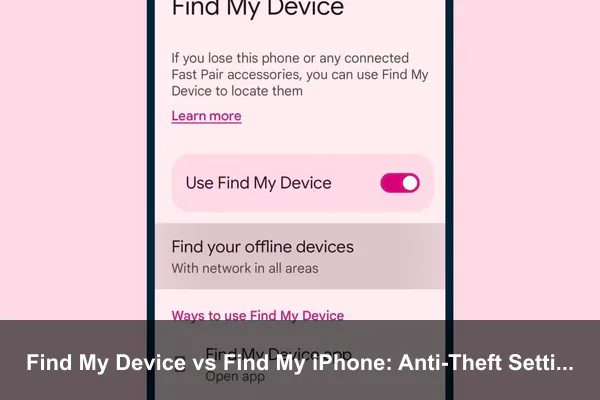
Open Settings > Google or Security > Find Hub > Find your offline devices. Depending on your device, you may see options such as:
- Off: no stored encrypted recent locations and no network participation.
- Without network: the phone can use its own encrypted recent location, but not the broader network.
- With network in busy places only: useful for airports, malls, stations, campuses, and other crowded areas.
- With network everywhere: the strongest option where available, especially if you travel, commute, or live outside dense urban areas.
For the best offline finding experience, set a strong PIN, pattern, or password. Google states that the network uses end-to-end encrypted location information, and a screen lock improves protection for offline finding.
Turn On Theft Protection Features
Recent Android versions include a dedicated Theft protection area. According to Google’s Android theft protection documentation, some features require Android 15 or later, some require Android 10 or later, and support can vary by model. Android Go devices, tablets, and wearables may not support the full set.
Go to Settings > Google > All services > Theft protection. On some phones, the path may be under Security or Safety. Enable these features if available:
- Theft Detection Lock: uses on-device signals such as motion sensors, Wi-Fi, Bluetooth, and AI to detect a possible grab-and-run theft and lock the screen.
- Offline Device Lock: automatically locks the screen after the phone is used offline for a short period, limiting the benefit of cutting connectivity.
- Failed Authentication Lock: locks the device after repeated failed unlock attempts.
- Remote Lock: lets you lock the screen quickly from android.com/lock with a verified phone number.
- Identity Check: on supported devices, requires biometrics for sensitive actions outside trusted places.
Remote Lock is especially practical because it is designed for speed. If your phone is stolen and you cannot complete a full Google sign-in immediately, Remote Lock can help lock the screen using your verified phone number. You should set it up before anything happens, including any optional security question your device offers.
Set a Strong Screen Lock, Not a Lazy One
Find Hub is not a substitute for a strong local lock. If your phone is snatched while unlocked, or if someone saw your simple PIN in public, remote tracking is only one part of the problem. Use a six-digit or longer PIN, a strong password, or a complex pattern. Avoid birth years, repeated digits, phone number fragments, or easy hand shapes.
Biometric unlock is convenient and useful, but it still falls back to your screen lock in many situations. That means the PIN or password remains the real key. For anti-theft purposes, a longer numeric PIN is often a good balance between speed and security.
Create Google Account Backup Codes
If your stolen Android phone is also your main two-step verification device, you could be locked out when you most need to sign in. Before a theft, create backup codes or keep a physical security key in a safe place. This is not glamorous, but it is one of the highest-value anti-theft preparations because remote erase and account sign-out require account access.
iPhone Anti-Theft Settings to Enable Right Now
On iPhone, the anti-theft system is tightly connected to your Apple Account. The key is to turn on Find My iPhone, keep Find My network active, use Stolen Device Protection, and avoid removing a stolen device from your account too early.
Turn On Find My iPhone, Find My Network, and Send Last Location
Apple’s setup page explains the core path: turn on Find My for iPhone from Settings. On your iPhone:
- Open Settings.
- Tap your name at the top.
- Tap Find My.
- Tap Find My iPhone.
- Enable Find My iPhone.
- Enable Find My network so the device can be found even when offline.
- Enable Send Last Location so the iPhone can send its location when the battery is critically low.
The Find My network is an encrypted and anonymous network of Apple devices. In a real theft, that matters because the phone may not stay online. If your iPhone is powered off, disconnected, or out of cellular coverage, Find My network data may still help show the last known location, depending on device support, time elapsed, and region.
Confirm Activation Lock Is Active
Activation Lock is one of the biggest differences in the Find My Device vs Find My iPhone debate. Apple explains in its Activation Lock support article that Activation Lock turns on automatically when Find My is enabled. It can require your Apple Account credentials before someone can turn off Find My, erase the device, or reactivate and use it.
This is the feature that makes a stolen iPhone harder to resell as a usable phone. The mistake to avoid is removing the device from your Apple Account after it is stolen. Removing it can disable Activation Lock and make the device more valuable to a thief. If you have AppleCare+ with Theft and Loss, Apple also says Find My must remain enabled during the claim process.
Enable Stolen Device Protection
Stolen Device Protection is Apple’s answer to a specific real-world attack: someone watches you enter your passcode, steals the iPhone, then changes account settings before you can react. Apple’s Stolen Device Protection documentation says it adds biometric requirements and, for some actions, a security delay.
To turn it on:
- Open Settings.
- Tap Face ID & Passcode or Touch ID & Passcode.
- Enter your passcode.
- Tap Stolen Device Protection.
- Turn it on.
- Choose whether to require the extra protection away from familiar locations or Always.
The Always option is worth considering if you want the strongest posture. It means sensitive changes can require biometric checks and delays even when you are at home or work. That can add friction, but it also reduces the risk that a familiar-location assumption weakens your protection.
Lock Sensitive Apps
Newer iPhone versions allow apps to be locked behind Face ID or Touch ID. When combined with Stolen Device Protection, locked apps can require biometrics with no passcode fallback when the iPhone is away from familiar locations. Lock apps that could help a thief take over your identity, such as email, password managers, banking apps, cloud storage, messaging apps, and authenticator apps.
On the Home Screen, touch and hold a supported app, then choose Require Face ID or Require Touch ID. This is not only about hiding personal content. Email and messages often contain password reset links and verification codes, so locking them can reduce account takeover risk after theft.
Use a Strong iPhone Passcode
A four-digit passcode is not enough for a modern anti-theft plan. Use a six-digit passcode at minimum, or choose a custom alphanumeric code if you can tolerate the extra typing. The entire point of Stolen Device Protection is that a passcode alone can be abused if someone observes it, so do not make that code easy to observe, guess, or remember from shoulder surfing.
The Anti-Theft Settings That Matter on Both Platforms
The comparison between Find My Device vs Find My iPhone is useful, but the strongest advice applies to both Android and iPhone. A locator service is only one layer. Your goal is to slow the thief, preserve your account access, prevent SIM abuse, and keep sensitive notifications off the lock screen.
Hide Sensitive Lock Screen Notifications
Lock screen notifications can reveal one-time codes, bank alerts, email previews, ride details, home addresses, or workplace information. Set notifications to hide sensitive content when locked. On iPhone, use Settings > Notifications > Show Previews and choose a more restrictive option. On Android, look under Settings > Notifications or Security & privacy for lock screen notification controls.
Use a SIM PIN or Carrier Lock Protections
A thief may remove a physical SIM and place it in another phone to receive SMS codes or impersonate your number. A SIM PIN helps reduce that risk. The setup path varies by platform and carrier, and you should change the default SIM PIN rather than leaving a public default in place. If you use eSIM, also know how to contact your carrier quickly to suspend service.
Record Your IMEI and Serial Number
Your IMEI and serial number can help your carrier, insurer, or law enforcement identify the device. Store them somewhere you can access without the phone, such as a password manager available from another trusted device or printed emergency record. On most phones, you can find this information in Settings under About Phone or General > About.
Keep a Recovery Path That Does Not Depend on the Stolen Phone
This is the overlooked setting behind many theft disasters. If every recovery code, trusted device, authenticator, and email login depends on the stolen phone, you may not be able to lock or erase it quickly. Keep at least one backup method: printed backup codes, a hardware security key, a trusted tablet, a home computer, or another device signed in to the same Apple Account or Google Account.
What to Do in the First Hour After a Phone Is Stolen
Preparation matters, but response speed still counts. The first hour is when a thief may try to disable radios, change account settings, remove SIM access, or trick you with phishing messages. Your priority is not confrontation. It is account and data protection.
If an Android Phone Is Stolen
- Go to android.com/find or use the Find Hub app from another device.
- Select the stolen phone and check its location.
- Use Secure device or Remote Lock if available.
- If recovery is unlikely or sensitive data is at risk, consider remote erase.
- Change your Google Account password from a trusted device if you suspect account compromise.
- Contact your carrier to suspend the SIM or eSIM.
- Report the IMEI to your carrier and, if appropriate, law enforcement.
Remote erase is a serious step. It protects data, but it may affect your ability to keep tracking the phone depending on device state and platform behavior. Use it when protecting the data is more important than watching the map.
If an iPhone Is Stolen
- Go to iCloud.com/find or open Find My on another Apple device.
- Mark the iPhone as lost as quickly as possible.
- Display a recovery message only if it does not reveal personal information.
- Do not remove the iPhone from your Apple Account or Find My.
- Contact your carrier to suspend the line.
- Change important passwords from a trusted device if you suspect exposure.
- Be suspicious of messages claiming your iPhone was found and asking for your Apple Account password, passcode, or verification code.
Apple’s stolen-device guidance at Apple Support emphasizes marking the device as lost and staying alert for social engineering. A thief may not need to break Apple’s security if they can trick you into removing Activation Lock yourself.
Which Platform Has Better Anti-Theft Protection?
There is no single winner for every person, but there are clear strengths.
Where Android Is Strong
Android’s newer theft protection tools are designed around real theft behavior. Theft Detection Lock targets the moment a phone is grabbed. Offline Device Lock targets the moment connectivity is cut. Remote Lock gives you a fast way to lock the device with a verified phone number. Identity Check, where supported, raises the bar for sensitive changes outside trusted places.
The drawback is fragmentation. Not every Android phone gets every feature at the same time. Some settings depend on Android version, Play services, manufacturer support, region, and hardware. If you own a recent Pixel or flagship Android phone, you may have an excellent anti-theft toolkit. If you own an older or budget model, you need to check what is actually available.
Where iPhone Is Strong
iPhone’s strength is integration. Find My iPhone, Find My network, Lost Mode, Activation Lock, Apple Account security, and Stolen Device Protection work as a tightly connected system. Activation Lock is especially powerful because it can reduce resale value by requiring the original Apple Account to reactivate the phone.
The drawback is that some protections depend on user discipline. If you use an easy passcode, ignore Stolen Device Protection, reveal notification previews, or remove the device from your account after theft, you can weaken the system. Apple provides strong defaults, but the best results still require conscious setup.
Quick Checklist: Enable These Before You Need Them
Use this as a fast audit. Do it now, not after your phone is already gone.
Android Checklist
- Find Hub or Find My Device is on.
- Location is on.
- Offline finding is set to a network option, preferably the strongest available setting.
- Screen lock is a strong PIN, password, or complex pattern.
- Theft Detection Lock is enabled if supported.
- Offline Device Lock is enabled if supported.
- Failed Authentication Lock is enabled if available.
- Remote Lock is set up with a verified phone number.
- Identity Check is enabled if your device supports it.
- Google Account backup codes or a hardware security key are stored safely.
- Lock screen notification previews are limited.
- IMEI and serial number are saved somewhere outside the phone.
iPhone Checklist
- Find My iPhone is on.
- Find My network is on.
- Send Last Location is on.
- Activation Lock is active through Find My.
- Stolen Device Protection is enabled.
- Security Delay is set to Always if you want maximum protection.
- Sensitive apps are locked with Face ID or Touch ID.
- The passcode is six digits or stronger, ideally not easy to observe or guess.
- Two-factor authentication for Apple Account is enabled.
- Recovery contacts, recovery key, or other account recovery options are reviewed.
- Lock screen notification previews are restricted.
- IMEI and serial number are saved outside the iPhone.
Common Mistakes That Weaken Phone Anti-Theft Protection
Most failures are not caused by one missing feature. They happen because several small weaknesses line up at the wrong time. Avoid these mistakes:
- Assuming the feature is on: verify from another device that your phone appears in Find Hub or Find My.
- Using a simple passcode: a locator service cannot undo the damage of an easily guessed PIN.
- Leaving offline finding disabled: many stolen phones go offline quickly.
- Depending only on SMS recovery: your phone number may be unavailable after theft.
- Showing message previews on the lock screen: codes and reset links can appear before the phone is unlocked.
- Removing a stolen iPhone from your Apple Account: this can remove Activation Lock and help the thief.
- Ignoring phishing after theft: messages claiming the phone was found may be attempts to steal your credentials.
- Waiting to contact the carrier: suspend the SIM or eSIM quickly if the phone is stolen.
Conclusion
The best way to think about Find My Device vs Find My iPhone is not as a brand rivalry. Think of them as two security ecosystems with different layers. Android gives you powerful theft-response tools such as Theft Detection Lock, Offline Device Lock, Remote Lock, Identity Check, and Find Hub network options. iPhone gives you tight integration through Find My iPhone, Find My network, Lost Mode, Stolen Device Protection, locked apps, and Activation Lock.
Both can fail if you treat them as set-and-forget features without checking the details. The settings to enable right now are the ones that still work when the phone is offline, when someone saw your passcode, when your SIM is targeted, or when you need to sign in from a backup device. Turn on the locator service, strengthen the screen lock, enable theft-specific protections, protect account recovery, and test the system before you need it.
A stolen phone may still be gone physically, but the right anti-theft settings can keep the loss from becoming a full account, identity, and financial compromise. That is the real goal of smartphone anti-theft protection.
