
Introduction
A smartphone that becomes hot during a long game or video call is not unusual. What matters is how hot it gets, how quickly it gets there, and whether the heat causes performance drops, battery drain, shutdowns, charging pauses, camera warnings, or uncomfortable handling. Gaming and video calls are two of the most demanding everyday tasks because they keep several power-hungry parts working at the same time: the processor, graphics unit, display, camera, modem, Wi-Fi radio, speakers, microphones, and battery system.
This guide explains why your smartphone overheats during gaming or video calls and how to fix it without guessing. Instead of treating heat as a single problem, we will break it down into workload, environment, settings, network conditions, charging habits, app behavior, and possible hardware faults. The goal is simple: reduce unnecessary heat, keep performance stable, protect battery health, and know when a warm phone is normal versus when it needs attention.
What Phone Overheating Actually Means
Modern smartphones are designed to run warm under heavy load. A thin glass-and-metal device has no large fan, no big heat sink, and very little internal space. The phone spreads heat through the frame, back panel, display, and internal graphite or vapor chamber layers. That means heat you feel on the outside is often the device trying to move heat away from sensitive components.
Warm Is Normal, Too Hot Is Different
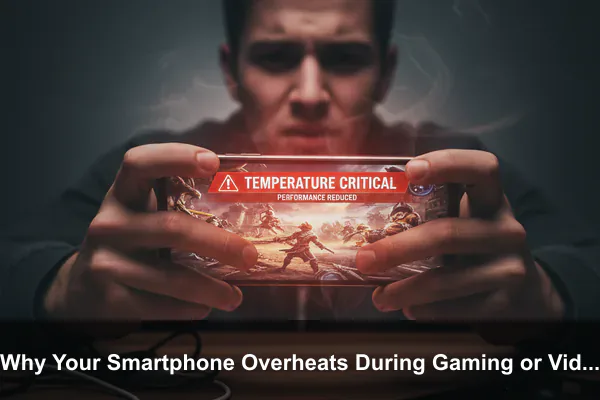
A warm phone after 20 minutes of gaming, navigation, recording, or video calling is usually normal. A phone may feel noticeably warm around the camera area, upper back, side rails, or display because the system-on-chip, image processor, modem, and battery are nearby. Overheating becomes more concerning when the phone shows clear symptoms:
- The screen dims suddenly even when auto-brightness is off.
- The game drops frames, stutters, or lowers graphics quality by itself.
- The video call freezes, disconnects, or the camera turns off.
- Charging slows, pauses, or shows a temperature warning.
- The device becomes too hot to hold comfortably.
- The phone shuts down or refuses to reopen the camera until it cools.
- The battery percentage falls unusually fast during the same task.
These are signs that the phone is using thermal protection. That protection is useful because it prevents damage, but it also tells you the device is under more stress than it can comfortably handle in that moment.
Why Thin Phones Heat Up Faster
Smartphones are powerful because their chips can briefly draw a lot of power. They are also thin, sealed, and quiet because users expect waterproofing, pocketability, and no fan noise. This design creates a thermal tradeoff. A phone can deliver high performance in short bursts, but sustained loads are harder. Gaming and video calls are sustained loads, so heat builds up faster than it does during browsing, messaging, or music playback.
Why Your Smartphone Overheats During Gaming
Mobile games can push a smartphone harder than many users realize. A demanding game is not only drawing graphics. It is calculating physics, loading textures from storage, refreshing the display many times per second, keeping the network active for multiplayer, running audio, checking touch input, and sometimes recording gameplay or voice chat at the same time.
The CPU and GPU Are Working Continuously
The CPU handles game logic, artificial intelligence, network timing, background systems, and operating system tasks. The GPU renders the 3D scene, lighting, effects, shadows, and frame output. In a graphically demanding game, both stay active for long periods. The more frames per second you request, the more often the phone has to complete this work.
That is why switching from 60 fps to 90 fps or 120 fps can make a phone heat up much faster. Higher frame rates feel smoother, but they also ask the chip to produce more frames every second. If the game also uses high-resolution textures, complex effects, and online multiplayer, the thermal load rises quickly.
The Display Adds Its Own Heat
Screen brightness is one of the easiest heat sources to overlook. Outdoor gaming or gaming near a window often pushes brightness to maximum. OLED and LCD panels both use more power at high brightness, and that power becomes heat. A high refresh rate display can also increase load because the screen updates more often.
If your phone gets hot mostly from the front, especially during bright outdoor gaming, the display may be a major contributor. Reducing brightness by even 15 to 25 percent can noticeably improve comfort without changing the game itself.
Network and Background Tasks Make It Worse
Online games keep Wi-Fi or cellular data active. If the connection is weak, the modem may increase power to maintain a stable link. The phone may also heat up if updates, cloud backups, photo syncing, app downloads, or screen recording are running in the background. These tasks compete for processor time, storage access, and network bandwidth.
Gaming heat is often not caused by one setting. It is the combination: high graphics, high fps, high brightness, weak signal, warm room, thick case, and charging all at once.
Why Your Smartphone Overheats During Video Calls
Video calls look simple, but they use many systems at the same time. A video call is essentially live camera capture, image processing, video compression, network upload, network download, audio capture, speaker playback, display output, and app synchronization running continuously. This makes video calling one of the most common reasons a phone gets hot during work, school, family calls, and remote meetings.
The Camera and Image Processing Stay Active
During a video call, the camera sensor is active the whole time. The phone also processes the image so your face looks properly exposed, focused, stabilized, and balanced under different lighting. Some apps apply background blur, face effects, auto-framing, beauty filters, low-light enhancement, or noise reduction. These features can be useful, but they require extra processing.
If your phone heats up near the camera bump during calls, camera processing is likely part of the reason. Using a virtual background, portrait blur, or low-light mode for a long meeting can increase heat significantly.
Live Video Encoding Is Demanding
Your phone does not send raw camera footage directly over the internet. It compresses the video in real time using hardware and software encoders. Higher call quality, higher resolution, and faster frame rates require more work. At the same time, the phone decodes the incoming video from other participants and displays it on screen.
Group calls can be hotter than one-to-one calls because the app may decode multiple video streams, animate participant tiles, and keep chat, captions, screen sharing, or reactions active. A long group meeting can therefore heat the phone almost like a game, especially on cellular data.
Weak Signal Can Be the Hidden Cause
Many people blame the video calling app when the real issue is network quality. A weak cellular signal forces the modem to work harder. Poor Wi-Fi can cause repeated retries, higher transmit power, and unstable upload performance. Because video calls need continuous upload and download, network stress quickly becomes thermal stress.
If your phone overheats more on cellular video calls than on home Wi-Fi, the modem is probably contributing. If it overheats in one room but not another, the local signal may be the problem, not the phone itself.
Fast Fixes When Your Phone Gets Hot Right Now
When your smartphone overheats during gaming or a video call, the first priority is to reduce heat safely. You do not need extreme measures. In fact, extreme cooling can create moisture risk and may harm the device. Use controlled, gradual cooling instead.
Immediate Cooling Steps
- Stop charging if it is plugged in. Charging adds battery heat, especially with fast chargers.
- Remove the case. Thick silicone, leather, rugged, magnetic, and wallet cases can trap heat.
- Lower screen brightness. This cuts display power immediately.
- Pause the game or turn off your camera briefly. This reduces processor, GPU, and camera load.
- Move the phone away from sunlight. Direct sun can heat a phone faster than the workload itself.
- Place it on a cool, dry surface. A desk, tile surface, or metal stand helps heat spread.
- Close obvious background tasks. Stop screen recording, downloads, backups, and unused apps.
Give the phone several minutes to stabilize. If it has shown a temperature warning, wait until the warning clears before gaming again, resuming the camera, or reconnecting the charger.
What Not to Do
Avoid placing the phone in a freezer, refrigerator, or against ice. Rapid temperature change can create condensation, and moisture near ports, speakers, seals, or internal parts is a bigger risk than ordinary heat. Do not put the phone under running water, even if it has a water resistance rating. Water resistance is not a cooling feature, and seals age over time.
How to Stop Overheating During Gaming
The best gaming fixes reduce sustained load without ruining the experience. You do not have to turn every setting to low. Instead, target the settings that create the most heat for the least visual benefit.
Adjust Game Settings Strategically
Start with frame rate because it has a major effect on heat. If your phone overheats at 120 fps, try 60 fps. If 60 fps still runs hot, try 45 fps or a balanced mode if the game offers it. A stable 60 fps often feels better than a phone that starts at 120 fps and then throttles into stutter.
- Use balanced graphics instead of ultra settings for long sessions.
- Lower shadows, reflections, and post-processing before lowering texture quality.
- Disable motion blur if the game allows it.
- Use 60 fps for long sessions and reserve higher fps for shorter competitive sessions.
- Turn off screen recording, live streaming, and voice effects unless needed.
If the game has a performance monitor, watch for patterns. A phone that heats after five minutes may be overloaded. A phone that heats after 40 minutes may simply need a brightness reduction, case removal, or short break between matches.
Use the Phone’s Gaming Mode Carefully
Many phones include a gaming mode, performance mode, or game booster. These features can block notifications, prioritize touch response, manage memory, and raise performance limits. They can also make heat worse if they force the chip to run harder for longer.
For extended gaming, choose a balanced or standard gaming profile rather than the maximum performance option. Use high performance mode only when you need it, such as a short ranked match, benchmark, or high-stakes round. For casual play, balanced mode usually gives better comfort and battery life.
Improve Physical Cooling
Physical airflow matters. Holding the phone tightly with both hands traps heat against your palms. A case traps even more. If you game for long sessions, consider a simple phone stand or clip-on cooling fan. These accessories are most useful for demanding games, warm rooms, or older phones whose batteries and thermal materials have aged.
Do not block the back panel with blankets, pillows, or soft surfaces while gaming. Soft surfaces hold heat and can also muffle speakers. A firm surface or stand lets the phone release heat more evenly.
How to Stop Overheating During Video Calls
Video call fixes are different from gaming fixes because the main load is camera, encoding, display, and network stability. The best approach is to reduce unnecessary video processing and improve the connection.
Lower Video Workload
If the app allows it, reduce video resolution from HD to standard quality for long meetings. The difference may be small on a phone screen, but the heat reduction can be significant. Turn off background blur, animated backgrounds, face filters, and low-light enhancement unless they are necessary. These effects are convenient, but they require extra processing every second.
- Use audio-only mode when you are listening more than speaking.
- Turn your camera off during long presentation segments.
- Disable background blur and live effects for extended calls.
- Use headphones to reduce speaker power and improve microphone clarity.
- Keep the call app updated so it benefits from performance fixes.
For very long calls, using a laptop or tablet may be more comfortable. A phone can handle video meetings, but a larger device usually has more thermal room and can stay cooler.
Fix the Connection Before Blaming the App
A stable network is one of the strongest ways to reduce video call heat. If possible, use strong Wi-Fi instead of weak cellular data. Move closer to the router, avoid crowded public networks, or switch from 5 GHz to 2.4 GHz Wi-Fi if distance and walls are causing instability. If your Wi-Fi is crowded but cellular signal is strong, cellular may actually run cooler and smoother.
Pay attention to where overheating happens. If the phone gets hot only in a specific room, office corner, car, train, or basement, signal quality is likely involved. A phone that is constantly searching, reconnecting, or boosting transmit power will heat up even during a normal call.
Use a Stand Instead of Holding the Phone
During calls, many people hold the phone or prop it against fabric. That blocks heat. A small stand keeps the camera angle stable and exposes more surface area to air. It also prevents hand warmth from adding to the phone’s temperature. For work calls, this simple change can reduce heat and make the call more comfortable.
Settings and Habits That Reduce Heat Every Day
Some overheating problems come from daily setup rather than the game or call itself. A phone with many background services, full storage, unstable apps, or aggressive sync settings has less thermal headroom for demanding tasks.
Check Background Activity
Before gaming or joining a long call, stop tasks that are known to run heavily in the background. Cloud photo uploads, offline map downloads, app updates, large file transfers, and malware scans can all compete with your main activity. On Android, review battery usage by app. On iPhone, check battery activity and background app refresh behavior.
Do not obsessively close every app. Modern mobile operating systems manage memory well. Focus on apps that are actively uploading, downloading, recording location, syncing media, or using the camera, microphone, or hotspot.
Keep Storage and Software Healthy
Very low storage can make a phone behave poorly because the system has less room for cache, updates, temporary files, and app data. Aim to keep a reasonable amount of free storage, especially if you play large games or record video. Software updates can also improve thermal behavior because manufacturers and app developers tune performance, network handling, camera processing, and battery management over time.
- Update the operating system after checking that the release is stable for your device.
- Update games and video call apps regularly.
- Delete unused large apps and old media files if storage is nearly full.
- Restart the phone occasionally if it has been running for weeks.
- Review apps with unusual battery use after an overheating event.
Be Careful With Charging During Heavy Use
Gaming or video calling while charging is one of the fastest ways to create heat. The battery is receiving power while the processor, display, camera, or modem is consuming power. Fast charging increases this effect. If you must use the phone during a call, use a lower-power charger, remove the case, and place the phone on a stand.
For gaming, avoid starting a heavy session at very low battery while fast charging. If possible, charge to a comfortable level first, unplug, then play. Some gaming phones and accessories support bypass charging, which powers the phone directly while reducing battery heat, but not all devices offer this feature.
Environmental Causes People Often Miss
The same phone can behave very differently depending on the room, season, surface, and how it is held. Ambient heat reduces the difference between the phone’s internal temperature and the surrounding air, making it harder for heat to escape.
Sunlight and Cars Are Major Heat Risks
Direct sunlight can raise surface temperature quickly, even before you open a game or video app. A dashboard mount, beach chair, outdoor cafe table, or sunny window can push the phone toward thermal limits. Cars are especially risky because interior temperatures can rise rapidly when parked or when sunlight hits the dashboard.
If you need to use video calling or gaming outdoors, find shade, lower brightness where possible, and avoid charging at the same time. If the phone is already hot from being in a car, let it cool before starting a demanding task.
Cases Can Help Drops But Hurt Cooling
Protective cases are useful, but some trap heat more than others. Rugged cases, wallet cases, leather folio cases, and thick silicone cases reduce heat transfer. Magnetic accessories and battery cases can add more thermal insulation or power load.
You do not need to abandon protection. Just remove the case during long gaming sessions, extended video calls, or charging in a warm room. If overheating disappears when the case is off, the case was part of the problem.
When Overheating May Indicate a Bigger Problem
Most heat issues can be improved with settings and habits. However, some patterns point to a battery, charging, software, or hardware problem that deserves closer attention.
Warning Signs to Take Seriously
- The phone heats up while idle with the screen off.
- The battery swells, lifts the screen, opens the back panel, or changes shape.
- The phone becomes hot during basic tasks like texting or checking email.
- Heat appears after a drop, water exposure, or repair.
- The charging port smells burnt, feels loose, or gets hot with multiple cables.
- The phone shuts down repeatedly even after cooling.
- Battery drain is sudden and severe after a recent app install or update.
If you notice battery swelling, stop using and charging the device and contact a qualified service provider. A swollen battery is not a software issue. It needs proper handling and replacement.
How to Diagnose Without Special Tools
Start by looking for patterns. Does overheating happen only in one game, one video call app, or one location? Does it happen only while charging? Does it happen only with the case on? Does it happen after a recent update? Good diagnosis comes from changing one variable at a time.
- Restart the phone and repeat the same task in a cool room.
- Try the task without the case.
- Try Wi-Fi instead of cellular data, or cellular instead of weak Wi-Fi.
- Try the same call without background effects.
- Try the same game at lower frame rate and brightness.
- Check battery usage for apps consuming power in the background.
- Test with a known-good charger and cable if charging heat is involved.
If one change solves the issue, you have found the likely cause. If none of these changes help and the phone overheats under light use, it may need professional inspection.
Common Myths About Cooling a Hot Smartphone
Overheating advice online is often too extreme or too vague. Some common tips are harmless, but others can create new problems.
Myth: A Freezer Is the Fastest Safe Fix
A freezer can cool the outside quickly, but it can also create condensation when the phone returns to normal room temperature. Moisture and electronics do not mix. Gradual cooling in shade or near normal airflow is safer.
Myth: Waterproof Means Heatproof
Water resistance ratings are about controlled water exposure under specific conditions. They do not mean the phone should be cooled with water, used in hot steam, or charged while wet. Heat, pressure, soap, salt, and aging seals can all reduce protection.
Myth: Closing All Apps Always Fixes Heat
Closing every app may help if one app is misbehaving, but it is not a universal fix. Some apps will simply restart in the background. It is better to identify the high-activity app, update it, limit its background permissions, or uninstall it if it keeps causing problems.
Myth: Heat Always Means the Phone Is Defective
A warm phone during a demanding game or HD video call is expected. Defect concerns start when heat appears during idle time, basic use, normal charging with trusted accessories, or when physical battery symptoms appear.
A Practical Overheating Prevention Checklist
Use this checklist before long gaming sessions or important video calls. It keeps the phone cooler without turning the experience into a maintenance project.
- Charge before the session instead of fast charging during it.
- Remove thick cases for long sessions.
- Lower brightness and avoid direct sunlight.
- Use Wi-Fi or cellular based on whichever signal is stronger and more stable.
- Set games to balanced graphics and a stable frame rate.
- Turn off video call background blur, filters, and effects when they are unnecessary.
- Use a stand so the phone can release heat from the back panel.
- Stop downloads, cloud backups, and screen recording before starting.
- Keep apps and the operating system updated.
- Investigate repeated idle heat or charging heat instead of ignoring it.
The key is consistency. A single change may help, but combining several small improvements gives the phone more thermal headroom. Lower brightness, better signal, no case, no charging, and balanced performance together can transform a hot, unstable session into a smooth one.
Conclusion
Your smartphone overheats during gaming or video calls because these tasks demand sustained work from the processor, graphics unit, camera, display, modem, battery, and network systems. Heat is not automatically a sign of failure, but it is useful feedback. It tells you the phone is spending more power than it can comfortably release under the current conditions.
The most effective fixes are practical: lower frame rate or video effects, reduce brightness, improve signal, remove the case, avoid charging during heavy use, keep background tasks under control, and cool the phone gradually when it gets too hot. If the device heats while idle, shuts down repeatedly, shows battery swelling, or becomes hot during basic tasks, treat it as a possible hardware or battery issue and get it checked. With the right habits, most smartphones can handle gaming and video calls more comfortably, with fewer warnings, smoother performance, and less unnecessary stress on the battery.
