
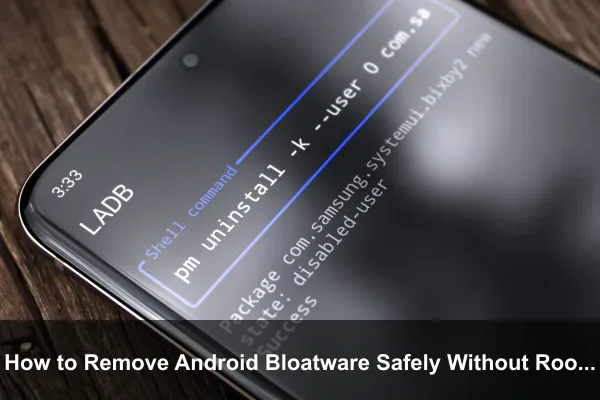
Introduction: Remove Bloatware Without Breaking Your Android Phone
Android phones are flexible, powerful, and customizable, but many arrive with apps you never asked for. Carrier utilities, trial games, duplicate browsers, manufacturer stores, shopping apps, cloud services, and background assistants can clutter the app drawer, send notifications, consume storage, and sometimes run services you do not need. The good news is that you can remove Android bloatware safely without root on most devices if you understand the difference between uninstalling, disabling, and removing an app only for your current user profile.
This guide focuses on a careful, non-root method. That means no bootloader unlocking, no custom recovery, no system partition modification, and no warranty-risky tweaks. Instead, you will learn how to identify bloatware, back up your phone, use built-in Android settings, and, when needed, use ADB commands from a computer to remove preinstalled apps from your user account.
The goal is not to delete every app with an unfamiliar name. Android depends on many background packages that do not look important at first glance. A safe bloatware removal process is selective, reversible, and based on function rather than guesswork. Done properly, it can make your phone feel cleaner, reduce unwanted notifications, free some user-accessible storage, and improve privacy by limiting unnecessary apps.
What Counts as Android Bloatware?
Android bloatware is any preinstalled app or service that adds little value to you while taking up attention, storage, data, or background resources. The term is often used broadly, but not every preloaded app is harmful or useless. Some manufacturer apps handle essential features such as camera processing, display calibration, system updates, device care, emergency services, or payment security.
A practical definition is simple: bloatware is software you do not use, did not choose, and can remove or disable without losing core phone functions. Examples vary by brand, region, and carrier, but common categories include:
- Carrier apps: account managers, visual voicemail alternatives, plan upgrade tools, hotspot add-ons, and promotional storefronts.
- Trialware: games, streaming apps, office suites, antivirus trials, or shopping apps preloaded for marketing reasons.
- Duplicate apps: a second browser, email client, calendar, notes app, gallery, cloud drive, app store, or voice assistant.
- Brand ecosystem apps: loyalty apps, community forums, theme stores, device stores, tips apps, or promotional news feeds.
- Background services tied to unused features: print services, AR tools, wearable companion apps, or smart home panels you never use.
Bloatware vs System Apps
The safest mindset is to treat unknown packages as system apps until proven otherwise. A visible app icon is usually easier to judge than a hidden package name. For example, removing a preloaded shopping app is very different from removing a package that manages the launcher, phone calls, permissions, Android WebView, Bluetooth, biometric authentication, or setup wizard.
System apps can be critical even when they have boring names. Removing the wrong package may cause crashes, broken sharing menus, failed updates, missing settings screens, camera problems, or boot loops after a restart. Non-root ADB removal is usually reversible, but recovering a misconfigured phone can still be stressful. That is why this guide emphasizes preparation and conservative choices.
Before You Remove Anything: Safety Checklist
Removing Android bloatware without root is safer than modifying the system partition, but it still deserves planning. Before you disable or uninstall preinstalled packages, take a few minutes to prepare your phone and collect recovery options.
Back Up Important Data
Back up photos, documents, contacts, authenticator recovery codes, messaging data, and app-specific files. Most bloatware removal steps should not erase personal data, but troubleshooting is much easier when your data is safe. Use your preferred backup method, such as Google backup, the phone manufacturer’s backup tool, a local computer copy, or encrypted cloud storage.
Update Your Phone First
Install pending Android security updates and manufacturer updates before removing apps. Updates can change package dependencies, fix app behavior, and restore some preinstalled components. Starting from a fully updated state gives you a cleaner baseline and reduces the chance that a pending update fails because a related package was removed from the active user profile.
Write Down What You Change
Keep a simple list of every app or package you disable or uninstall. Include the friendly app name and the package name when using ADB. This list is your recovery map if a feature stops working later.
A useful log can be as simple as:
- App name: carrier account app
- Package name: com.example.carrier.account
- Action: disabled in Settings or uninstalled for user 0 with ADB
- Date changed: the day you made the change
- Reason: unused carrier promotion app
Understand the Difference Between Disable and Uninstall
Android gives you several levels of app removal. Each has a different risk profile:
- Uninstall: removes a user-installed app completely from your profile.
- Disable: turns off a preinstalled app so it cannot run or appear normally, while keeping the app package on the device.
- Uninstall for current user: removes the app from your active Android user profile with ADB, while the original system copy remains available for restoration.
- Root removal: modifies protected system areas. This guide does not use that approach.
For safety, start with normal uninstall or disable options. Use ADB only when Android Settings will not let you remove an app that is clearly nonessential.
Method 1: Remove or Disable Bloatware from Android Settings
The built-in Settings app is the safest first stop. It respects Android permissions, shows familiar app names, and usually prevents you from disabling packages that are too important for normal operation.
How to Uninstall Regular Preloaded Apps
Some preinstalled apps are not locked as system apps. You can remove them like any app from the Play Store.
- Open Settings.
- Go to Apps or Apps and notifications.
- Select See all apps if needed.
- Tap the app you want to remove.
- Choose Uninstall.
- Restart your phone after removing several apps.
If the uninstall button is available, this is usually the cleanest method. It removes the app from your user profile without needing developer tools.
How to Disable Apps That Cannot Be Uninstalled
If an app has no uninstall option, look for Disable. Disabling is often enough for unwanted manufacturer apps, duplicate apps, and carrier utilities. A disabled app should stop running, disappear from the launcher, and stop sending notifications unless another component re-enables it.
- Open Settings.
- Go to Apps.
- Find the unwanted app.
- Tap Force stop if it is running.
- Tap Disable.
- Confirm the warning only if you are confident the app is not essential.
Disabling is easy to reverse. Return to the same app info screen and choose Enable. If you are unsure whether an app is safe to remove, disable it first and use your phone normally for a day or two before taking stronger action.
Remove Updates Before Disabling
Some system apps have updates installed through the Play Store or a manufacturer app store. Android may show an option to uninstall updates before disabling the app. This can free extra storage because updated system apps often keep a copy in user-accessible storage.
For unused apps, this sequence can work well: uninstall updates, clear storage, then disable. Avoid clearing storage for apps that contain personal data you might need, such as notes, messages, or a cloud sync app.
Method 2: Use ADB to Remove Android Bloatware Without Root
ADB, short for Android Debug Bridge, is a developer tool that lets a computer communicate with an Android device. It can remove preinstalled apps from the current user profile without root. This does not erase the original system image copy, which is why the method is commonly used for non-root debloating.
The key command is usually pm uninstall --user 0 package.name. The --user 0 part matters because it targets the primary Android user rather than attempting to delete protected system files. In plain English, the app stops existing for you, but the phone still has a factory copy that can often be restored.
Install ADB Platform Tools
Use the official Android SDK Platform Tools package for your computer. After downloading and extracting it, open a terminal or command prompt inside the platform-tools folder. On Windows, PowerShell works well. On macOS or Linux, use Terminal.
You do not need Android Studio for this process. The small platform-tools package is enough.
Enable Developer Options and USB Debugging
- Open Settings on your Android phone.
- Go to About phone.
- Tap Build number seven times until developer mode is enabled.
- Return to Settings and open Developer options.
- Enable USB debugging.
- Connect the phone to your computer with a reliable USB cable.
- Approve the USB debugging prompt on the phone.
After authorization, run adb devices on your computer. If you see a device listed as authorized, the connection is ready.
Find the Package Name
Android apps have package names such as com.brand.appname. You need the exact package name before using ADB removal commands. There are several ways to find it:
- Use
adb shell pm list packagesto show all installed package names. - Use
adb shell pm list packages | findstr keywordon Windows to search by keyword. - Use
adb shell pm list packages | grep keywordon macOS or Linux. - Install a reputable package name viewer app if you prefer a graphical list.
- Check the app’s Play Store URL when the app is listed there, because the package name often appears after
id=.
Do not remove a package just because its name looks unfamiliar. Search the package name, compare it with the visible app label, and confirm its purpose first.
Uninstall Bloatware for the Current User
Once you are confident, use this command:
adb shell pm uninstall --user 0 package.name
Replace package.name with the real package name. If the command succeeds, ADB usually returns Success. The app should disappear from your launcher and app list for the primary user.
For example, the structure looks like this:
adb shell pm uninstall --user 0 com.example.unwantedapp
Remove apps one at a time. After each group of changes, restart the phone and test basic functions such as calls, messaging, Wi-Fi, Bluetooth, camera, Play Store updates, app links, file sharing, and notifications.
Disable Instead of Uninstalling with ADB
If you want a more conservative ADB action, disable the app instead of uninstalling it for the user:
adb shell pm disable-user --user 0 package.name
This is useful for questionable apps where you want a reversible test. To re-enable the app, use:
adb shell pm enable package.name
When in doubt, disable first. If your phone works normally for several days and the app is clearly unnecessary, you can decide whether uninstalling for user 0 is worth it.
How to Restore Apps Removed with ADB
A safe debloating guide must include recovery steps. If a feature breaks after removing Android bloatware without root, restore the most recent package you removed and test again.
Restore a System App for the Current User
For many preinstalled packages removed with pm uninstall --user 0, this command can restore the app:
adb shell cmd package install-existing package.name
On some devices, this alternative also works:
adb shell pm install-existing package.name
After restoring, restart the phone. If the app was tied to account sync, notifications, widgets, or background services, open the app once and check its permissions.
Reinstall from the Play Store or Manufacturer Store
Some preinstalled apps are also published in the Google Play Store, Galaxy Store, Xiaomi GetApps, OPPO App Market, or another brand store. If ADB restoration does not work, search the store for the app name. This is common for notes apps, file managers, galleries, health apps, device care modules, and smart home tools.
Use a Factory Reset as the Last Resort
A factory reset generally restores the default software state for the active firmware build, but it also erases your personal data. Treat it as a last resort, not a normal undo button. If you kept a change log and removed apps gradually, you should rarely need to reset the phone.
Apps and Packages You Should Usually Avoid Removing
The most important safety rule is knowing what not to touch. Every Android brand has different package names, so no universal list can be perfect. Still, some categories are risky on almost every device.
Core Android Components
Avoid removing packages related to these functions unless you have device-specific documentation and a clear recovery plan:
- System UI, launcher, recent apps, navigation gestures, and lock screen.
- Package installer, permission controller, settings provider, and setup wizard.
- Google Play services, Google Services Framework, Play Store, and Android System WebView, unless you know exactly how your device handles replacements.
- Phone, contacts storage, messaging framework, emergency alerts, and carrier configuration.
- Bluetooth, Wi-Fi, NFC, location, biometrics, keystore, certificates, and device policy management.
- Camera services, media storage, download manager, files provider, and document picker.
- System updater, rollback services, recovery components, and security modules.
Some of these may appear to be ordinary apps in Settings, but they are part of the operating system experience. Removing them can cause problems that are harder to diagnose than the storage savings are worth.
Brand Features You Actually Use
Be careful with manufacturer apps that power visible features. A Samsung, Pixel, OnePlus, Motorola, Xiaomi, vivo, OPPO, or Nothing phone may use brand-specific packages for camera modes, themes, gestures, gaming tools, display color controls, battery protection, stylus support, desktop mode, or wearable integration.
If you use any of those features, leave the related packages alone. A phone that is technically lighter but loses the features you bought it for is not an upgrade.
Work Profile and Banking Dependencies
Do not remove enterprise management, certificate, security, or device policy packages if your phone is used for work. Banking apps, passkeys, payment apps, and company profiles may depend on security components that are easy to overlook. If your employer manages part of the phone, ask your IT team before debloating.
How to Decide Whether an App Is Safe to Remove
Safe bloatware removal is a decision process, not a race. Before uninstalling a package with ADB, classify it by purpose, visibility, reversibility, and dependency risk.
Use the Three-Question Test
- Do I understand what this app does? If not, research it before touching it.
- Is it clearly separate from core phone functions? A shopping app is low risk; a permissions service is high risk.
- Can I restore it easily? If restoration is uncertain, disable first or leave it alone.
This test prevents most mistakes. The apps safest to remove are obvious promotional apps, trial apps, duplicate consumer apps, and carrier storefronts. The riskiest are hidden services, framework packages, and apps with names tied to security, provisioning, telephony, system UI, or settings.
Check Battery and Data Use Before Acting
If your main concern is performance, check whether the suspected bloatware is actually doing anything. Go to Android’s battery usage and mobile data usage screens. An app that never runs may be annoying in the app drawer, but it might not affect performance. In that case, disabling notifications or hiding the app may be enough.
This point matters because aggressive debloating can create more problems than it solves. Modern Android already restricts many idle background apps. The biggest practical gains often come from removing noisy carrier apps, duplicate cloud sync tools, and apps that send promotional notifications.
Prefer Official App Names Over Random Lists
Online debloat lists can be useful, but they are often device-specific, region-specific, and outdated. A package that is safe to remove on one model may support a feature on another. Use lists as references, not as commands to run blindly.
The best confirmation comes from matching three pieces of information: package name, visible app label, and function on your exact phone model. If those line up and the app is nonessential, removal is much safer.
Privacy, Performance, and Storage: What Results to Expect
Removing Android bloatware safely without root can improve the ownership experience, but expectations should be realistic. It will not transform weak hardware into a flagship phone, and it will not always free as much storage as a full system-level deletion would.
Privacy Benefits
Unused preinstalled apps may request permissions, collect diagnostics, send promotional notifications, or encourage account sign-ins. Disabling or removing them reduces your exposure. You can also review permissions for apps you keep and deny access to location, contacts, microphone, camera, nearby devices, and notifications unless the app truly needs them.
For privacy, the best approach combines debloating with permission hygiene. Remove what you do not use, restrict what you keep, and avoid signing into extra brand ecosystems unless they provide a feature you value.
Performance Benefits
The performance impact depends on the app. Removing a dormant app may make the launcher cleaner but will not change speed. Removing a background-heavy carrier app, duplicate cloud sync service, or promotional recommendation engine may reduce background wakeups, notifications, and data usage.
You may notice:
- A cleaner app drawer and search experience.
- Fewer unwanted notifications.
- Less background data from unused services.
- Reduced clutter in share sheets or open-with menus.
- Slightly better standby behavior if removed apps were active in the background.
If your phone feels slow, bloatware removal is only one part of maintenance. Storage pressure, failing battery health, heavy apps, poor network conditions, thermal throttling, and outdated software can also affect daily performance.
Storage Benefits
When you uninstall a normal app, you usually regain its storage. With system apps removed for user 0, the original system copy often remains on the protected system partition. That means storage gains may be smaller than expected. However, you can still free space used by updates, app data, cache, downloads, and duplicate user-level components.
Before removing a system app, clear its cache and data only if you do not need anything stored inside it. For preloaded games, shopping apps, or trial services, this is usually fine. For galleries, notes, recorders, and cloud apps, check carefully first.
A Conservative Debloating Workflow for Most Users
If you want a practical workflow, use this sequence. It starts with low-risk actions and moves gradually toward ADB only when necessary.
- Update the phone: install system and app updates first.
- Back up important data: especially photos, documents, messages, and authenticator recovery options.
- Uninstall obvious apps normally: remove trial games, shopping apps, and third-party apps with a normal uninstall button.
- Disable unused preinstalled apps: use Settings for duplicate apps, carrier tools, or brand apps you do not use.
- Use the phone for 24 to 48 hours: confirm that calls, messages, camera, payments, Bluetooth, Wi-Fi, and notifications still work.
- Identify remaining bloatware package names: use ADB or a package viewer.
- Remove one package at a time with ADB: avoid bulk scripts unless you fully understand every package.
- Restart and test after each batch: test the features most important to you.
- Keep a removal log: record package names and actions.
- Restore anything suspicious: if a feature breaks, undo the latest related change.
This workflow is slower than running a massive debloat script, but it is much safer. It also teaches you what is actually installed on your phone, which makes future troubleshooting easier.
Common Mistakes to Avoid
Most debloating problems come from speed, overconfidence, or poor package research. Avoid these mistakes if you want a clean phone without unnecessary risk.
Removing Everything with a Brand Name
It is tempting to remove every package that includes the manufacturer’s name. Do not do that. Brand packages may support camera processing, display features, gestures, update delivery, diagnostics, or device-specific settings. Remove by function, not by brand label.
Using Bulk Debloat Scripts Blindly
Bulk scripts can be convenient for advanced users, but they are risky for beginners. They may target a different Android version, region, carrier build, or phone model. If you use a script, read every package line first and remove entries you do not understand.
Deleting Your Current Launcher Before Installing Another
If you remove or disable the only launcher on your phone, navigation can become difficult. Install and set up a replacement launcher before disabling the stock launcher, and confirm the new launcher survives a restart.
Removing Setup, Update, or Permission Components
Setup wizard, updater, package installer, and permission controller packages may seem inactive after your phone is configured, but they can be needed for updates, app installs, permission prompts, and account changes. Leave them alone unless you have expert device-specific guidance.
Forgetting About Multiple Users and Work Profiles
The --user 0 command targets the primary user. If your device has multiple users, a guest profile, or a work profile, app behavior can differ between profiles. Do not assume changes in one profile apply everywhere.
Frequently Asked Questions
Is It Safe to Remove Android Bloatware Without Root?
Yes, it can be safe if you remove only clearly nonessential apps, use reversible methods, and avoid core system packages. The safest options are normal uninstall and disable from Settings. ADB removal for the current user is more advanced but still far safer than root-level deletion when used carefully.
Does ADB Bloatware Removal Void Warranty?
Using ADB commands to disable or uninstall apps for the current user normally does not unlock the bootloader or modify protected partitions. Warranty policies vary by region and manufacturer, but this method is much less invasive than rooting. Still, if you are dealing with a brand-new device or a work phone, stay conservative.
Will Removed Apps Come Back After an Update?
Sometimes. Major system updates, carrier configuration updates, or factory resets may restore preinstalled apps. Keep your removal log so you can repeat only the changes you actually want. Avoid blocking system updates just to keep bloatware away; security patches are more important.
Can Removing Bloatware Improve Battery Life?
It can, but only if the removed apps were active in the background, syncing data, sending notifications, or waking the device. Removing dormant apps mostly improves cleanliness and reduces clutter. For battery life, also review background battery settings, notification permissions, location access, and sync behavior.
What Should I Do If My Phone Starts Acting Strange?
Restore the most recently removed or disabled package, restart the phone, and test again. If you changed several things at once, restore them in reverse order. This is why removing apps gradually and keeping a package log is important.
Conclusion: Debloat Slowly, Safely, and Reversibly
Learning how to remove Android bloatware safely without root gives you more control over your phone without the risks of rooting or modifying system partitions. The safest approach is simple: uninstall what Android allows, disable what you do not use, and use ADB only for clearly identified nonessential packages that cannot be removed from Settings.
The best debloated phone is not the one with the shortest package list. It is the one that keeps calls, messages, updates, camera features, payments, security, and everyday tools working while removing the apps that add noise. Be selective, document your changes, test after each step, and keep recovery commands handy. With that approach, you can clean up preinstalled Android apps, reduce unwanted background activity, and make your smartphone feel more personal without taking unnecessary risks.
