
Introduction: When a Phone Becomes the Computer
A modern flagship smartphone is no longer just a pocket screen for messages, photos, maps, and short videos. With the right monitor, keyboard, mouse, dock, or wireless display, it can also become a lightweight desktop computer. That is the promise behind Samsung DeX, Motorola Ready For, and the newer wave of Android Desktop experiences built around desktop windowing and connected displays.
This comparison looks at the real desktop workflow, not just whether a phone can mirror its screen. A true smartphone desktop mode should give you a larger workspace, resizable apps, keyboard and mouse support, file access, notifications, video calling, and enough stability to make writing, research, email, messaging, dashboards, cloud apps, and remote desktops feel practical. Some systems are polished enough for travel work. Others are promising platform foundations that still depend heavily on phone model, Android version, app behavior, and accessory compatibility.
In Smartphone Desktop Modes Compared: Samsung DeX, Motorola Ready For, and Android Desktop, the useful question is not simply which one is most powerful. The better question is: which one fits the way you actually work? Samsung DeX is the most mature productivity environment. Motorola Ready For, now commonly presented through Motorola Smart Connect on newer devices, is broader and more media-friendly. Android Desktop is the stock Android direction that could make desktop mode less brand-specific over time.
Quick Verdict: Which Desktop Mode Is Best?
If you want the shortest answer, Samsung DeX is currently the safest choice for serious phone-to-monitor productivity. It has the longest track record, the clearest desktop metaphor, and the strongest expectation that a supported Galaxy phone will behave like a small computer when connected to an external display.
Motorola Ready For is best if you care about flexible screen sharing, video calls, entertainment, casual PC integration, and using the phone as a controller. It is less famous than DeX, but it can be very practical on supported Motorola Edge and Razr models, especially for people who move between a TV, monitor, and Windows PC.
Android Desktop is the most important long-term development. In this article, Android Desktop means the stock Android desktop windowing and connected-display experience, not a separate third-party launcher. Google has been building more native support for external displays, resizable windows, desktop-style app behavior, and multi-display workflows. The catch is that the experience depends on Android version, device support, OEM implementation, and whether your apps handle large screens properly.
Best Overall Choice
Choose Samsung DeX if you need the most dependable smartphone desktop mode for writing, browsing, email, file management, cloud productivity, and remote work.
Best for Entertainment and Flexible Connections
Choose Motorola Ready For or Smart Connect if you want a phone that can jump between monitor productivity, TV playback, video chat, and PC companion features.
Best Future Platform
Choose a phone with strong Android Desktop support if you want a more standard Android approach and are comfortable with a developing feature set.
What Smartphone Desktop Modes Actually Do
A smartphone desktop mode changes the phone from a single-screen handheld interface into a multi-window or large-screen environment. Instead of stretching the phone display onto a monitor, the system presents a desktop-like workspace with app windows, a taskbar or launcher, pointer input, keyboard shortcuts, drag-and-drop behavior, and better use of horizontal screen space.
The key difference is mirroring versus desktop mode. Screen mirroring simply duplicates the phone screen. It is useful for showing photos, presenting a slide, or watching a video, but it usually keeps the same mobile layout. A desktop mode creates a separate external display interface, often letting the phone screen act independently as a touchpad, keyboard, remote, or second display.
The Main Building Blocks
- External display output: The phone sends video to a monitor, TV, dock, or PC window using USB-C, HDMI adapters, wireless display, or companion software.
- Window management: Apps open in movable or resizable windows instead of full-screen phone layouts.
- Desktop navigation: A launcher, app drawer, taskbar, quick settings panel, and notification area make the workspace feel familiar.
- Keyboard and mouse input: Bluetooth or USB accessories let you type, right-click, scroll, select text, and move between apps more comfortably.
- Phone-side controls: Some systems let the phone become a trackpad, remote control, webcam, keyboard, or independent mobile screen.
This is a distinct topic from USB-C data speeds, fast charging, mobile chip comparisons, or phone storage management. Those things matter in the background, but the desktop-mode question is about workflow: how well a phone can replace a lightweight laptop when attached to a bigger screen.
Samsung DeX: The Most Mature Smartphone Desktop Mode
Samsung DeX has become the reference point for Android desktop modes because Samsung has refined it across many Galaxy S, Galaxy Z Fold, and Galaxy Tab devices. DeX turns a supported Galaxy phone or tablet into a desktop-style interface on an external display, with a taskbar, app windows, keyboard and mouse support, and a layout that feels closer to Windows, ChromeOS, or a lightweight Linux desktop than to a mirrored phone screen.
DeX is strongest when used with a wired monitor, USB-C hub, keyboard, and mouse. It can also support wireless display workflows on compatible screens, but a wired connection usually gives lower latency, sharper output, and better reliability for long work sessions. For people who travel with a portable monitor or use hotel TVs, conference-room displays, or shared office docks, DeX is one of the cleanest ways to make a phone useful beyond the small screen.
Where DeX Feels Most Complete
DeX is especially good at everyday productivity. Browser windows can sit beside a notes app. Email can stay open while you edit a document. Messaging apps can run in small windows without taking over the screen. Cloud tools such as Microsoft 365, Google Workspace, Notion, Slack, project dashboards, and web-based admin panels are often more comfortable in DeX than on the phone display.
Samsung also benefits from years of app compatibility work. Many Android apps still prefer phone-shaped layouts, but DeX usually handles scaling, windowing, and external input better than less mature systems. Apps that are designed for tablets, foldables, Chromebooks, or responsive web layouts tend to behave particularly well.
DeX Strengths
- Polished desktop interface: The taskbar, window controls, app launcher, and notification handling feel familiar quickly.
- Strong productivity focus: DeX is built for documents, browsers, email, chat, file management, remote desktop tools, and business apps.
- Good accessory support: It works well with Bluetooth keyboards, mice, USB hubs, monitors, and many docks on supported devices.
- Enterprise credibility: Samsung has positioned DeX for business and managed-device environments for years.
- Useful phone controls: The phone can remain available for calls, authentication, touchpad use, or quick mobile tasks.
DeX Weaknesses
- Device limitation: DeX is only available on supported Samsung devices, not every Galaxy model.
- App limits still exist: Some mobile apps do not resize cleanly or expect touch-first behavior.
- Accessory quality matters: Cheap hubs, weak chargers, or unreliable wireless displays can make DeX feel worse than it is.
- Not a full desktop OS: Professional desktop software for coding, video editing, CAD, or advanced local workflows may still require a laptop or cloud machine.
DeX is the best option if your goal is to carry one phone and turn any desk into a usable workstation. It will not replace a high-performance laptop for every role, but for browser-heavy knowledge work, communications, document editing, light file handling, and remote access, it is the most convincing smartphone desktop mode today.
Motorola Ready For: Flexible, Practical, and Media-Friendly
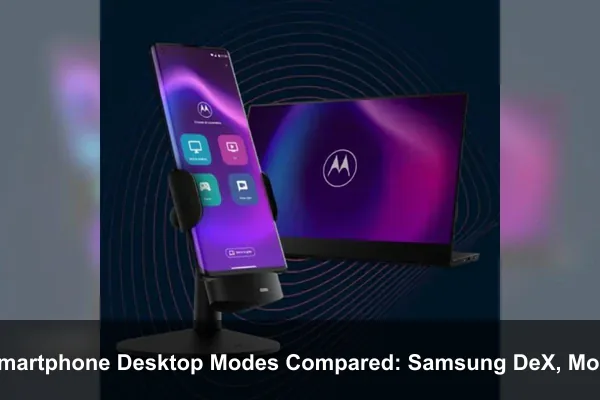
Motorola Ready For started as Motorola’s answer to DeX, but it has a slightly different personality. On newer Motorola devices, many of the same ideas appear through Motorola Smart Connect, a broader cross-device system that connects phones, tablets, PCs, and external displays. The name you see can depend on region, model, software version, and app packaging, but the practical idea is similar: your Motorola phone can power a bigger-screen experience.
Ready For can provide a mobile desktop interface on a monitor or TV, but it also leans into entertainment, video chat, gaming, and PC companion features. That makes it appealing for users who do not only want a desk setup. You might connect to a living-room TV for streaming, use the phone as a webcam for a video call, launch a game with controller-style phone controls, or move files and notifications between a Motorola phone and a Windows PC.
Where Ready For Stands Out
Motorola’s approach feels less narrowly office-focused than DeX. The desktop environment can be useful for browsing, messaging, documents, and presentations, but the broader Smart Connect idea is about moving phone experiences across screens. That makes it attractive for students, travelers, hybrid workers, and people who use their phone as a media hub.
Ready For also deserves credit for making the phone itself part of the interaction. Depending on the device and mode, the phone can act as a trackpad, remote, game controller, or camera source. This is not just a novelty. In a hotel room or shared meeting space, being able to control a TV interface from the phone without carrying extra hardware can be genuinely useful.
Ready For Strengths
- Versatile modes: Desktop, TV, video chat, gaming, file sharing, and PC companion features can coexist under the Ready For or Smart Connect umbrella.
- Good casual setup: It can be convenient when you want a bigger screen without building a full workstation.
- Phone as controller: Trackpad, remote, game controls, and camera features make the phone more than a simple video source.
- Useful PC links: Smart Connect can make a Motorola phone feel more integrated with a Windows laptop or desktop.
- Strong travel appeal: One phone can handle streaming, calls, presentations, and light productivity on available screens.
Ready For Weaknesses
- Model support varies: Not every Motorola phone supports every Ready For or Smart Connect feature.
- Branding can be confusing: Some users see Ready For, some see Smart Connect, and feature names may vary by region or software version.
- Less mature for heavy productivity: DeX usually feels more refined for full workdays of windowed desktop use.
- App behavior still depends on Android support: Poorly optimized mobile apps can feel awkward on a monitor.
Motorola Ready For is best when flexibility matters more than absolute desktop polish. If you want one phone to move between a monitor, TV, PC, and video-call setup, Motorola’s system can feel more adaptable than DeX. If you mainly want the strongest laptop-like productivity mode, Samsung still has the advantage.
Android Desktop: The Stock Android Direction
Android Desktop is different from DeX and Ready For because it is not primarily a branded phone-maker feature. It is the platform-level movement toward better desktop windowing, external display support, and large-screen Android behavior. Google has been improving Android so apps can run more naturally in resizable windows, external displays can show independent workspaces, and connected screens can become more than simple mirrors.
This matters because Android desktop computing has historically depended on individual manufacturers. Samsung built DeX. Motorola built Ready For. Other brands experimented with their own modes or ignored desktop output entirely. A stronger stock Android Desktop foundation could make external monitor workflows more consistent across devices and reduce the need for every manufacturer to reinvent the interface.
Why Android Desktop Matters
The long-term promise is simple: if Android itself understands desktop-style windows, multiple displays, pointer input, keyboard shortcuts, and responsive app layouts, then more phones can become useful computers without relying on one company’s custom environment. Developers also get clearer incentives to make apps work across phones, tablets, foldables, Chromebooks, and external displays.
Android Desktop is also tied to the larger shift toward large-screen Android. Foldables, tablets, and Chromebooks have pushed app developers to think beyond narrow phone screens. Desktop windowing is part of the same trend. An app that behaves well on a tablet or foldable is more likely to behave well on a monitor.
Android Desktop Strengths
- Platform-level potential: It can become a standard Android capability rather than a brand-specific extra.
- Better developer target: App makers can optimize for Android windowing instead of chasing separate OEM modes.
- Useful for future phones: More native support could make desktop mode available on a wider range of devices over time.
- Improves large-screen Android: The same work helps tablets, foldables, external displays, and productivity apps.
Android Desktop Weaknesses
- Still uneven across devices: Having a recent Android version does not guarantee a polished desktop experience on every phone.
- OEM support matters: Manufacturers can enable, customize, limit, or ignore connected-display behavior.
- Less proven than DeX: Samsung’s system has years of real-world refinement that stock Android is still catching up to.
- Accessory assumptions can be risky: Some phones lack display output hardware even if their software supports large-screen features.
Android Desktop is the option to watch if you care about where smartphone productivity is going. It may not beat DeX for polished work today, but it could become the foundation that makes phone-powered desktop computing normal across Android.
Head-to-Head Comparison
The three systems overlap, but they are not identical. DeX is a productivity environment. Ready For is a flexible cross-screen system. Android Desktop is the platform foundation. The best choice depends on whether you want a proven workstation, a multi-purpose phone-to-screen hub, or a future-facing Android standard.
| Feature | Samsung DeX | Motorola Ready For | Android Desktop |
|---|---|---|---|
| Main identity | Desktop productivity mode for supported Galaxy devices | Cross-screen phone experience, now often tied to Smart Connect | Stock Android desktop windowing and connected-display support |
| Best use | Workstation-style productivity | Entertainment, video calls, TV, PC links, and light productivity | Standardized future Android external-display workflows |
| Maturity | High | Medium to high, depending on device and feature | Growing, but uneven by device |
| Interface polish | Strong taskbar and windowed environment | Useful but less consistently desktop-like | Improving through Android windowing |
| App compatibility | Generally strong for Android desktop use | Good for common apps, variable for heavy work | Depends heavily on app and OEM support |
| Best buyer | Remote worker, student, consultant, enterprise user | Traveler, media user, hybrid worker, casual desktop user | Early adopter or user buying for the Android platform direction |
App Support: The Real Test of Any Desktop Mode
The biggest limitation of smartphone desktop modes is not usually raw phone performance. Modern premium phones are fast enough for browsing, documents, chat, video calls, streaming, and remote desktop sessions. The bigger issue is whether apps behave like good large-screen citizens.
Some Android apps scale beautifully. They open in wide layouts, support keyboard shortcuts, respond well to mouse input, and preserve state when resized. Others are locked into phone-shaped windows, waste screen space, ignore right-click behavior, or become awkward when used without touch. This is why the same desktop mode can feel excellent in one workflow and frustrating in another.
Apps That Usually Work Well
- Web browsers: Chrome, Samsung Internet, Edge, Firefox, and other browsers are often the backbone of phone-powered desktop work.
- Cloud office apps: Google Docs, Microsoft 365, webmail, calendars, and cloud storage tools are natural fits.
- Messaging and collaboration: Slack, Teams, WhatsApp, Telegram, Discord, and email clients can be useful in side windows.
- Remote desktop apps: Windows 365, Remote Desktop, Chrome Remote Desktop, Citrix, and similar tools can turn the phone into a gateway to a full computer.
- Media apps: Streaming, music, and presentation apps usually benefit from the larger display.
Apps That Can Be Difficult
- Touch-first creative apps: Drawing, mobile video editing, and photo tools may expect gestures instead of mouse precision.
- Banking and secure apps: Some apps block external display use, screenshots, or windowing for security reasons.
- Games: Some games work well with controllers, while others are locked to touch controls or portrait orientation.
- Legacy Android apps: Older apps may not understand resizable windows, landscape layouts, or desktop pointer behavior.
For serious work, the safest strategy is to build your desktop-mode workflow around responsive web apps and cloud services. A phone browser on DeX, Ready For, or Android Desktop often behaves more predictably than a poorly optimized mobile app.
Hardware and Accessory Checklist
A good smartphone desktop setup depends on more than the phone. The monitor, cable, dock, keyboard, mouse, charger, and display mode can dramatically change the experience. This section stays focused on desktop-mode needs rather than turning into a full USB-C explainer.
What You Need for the Best Experience
- A supported phone: Confirm that your exact model supports DeX, Ready For, Smart Connect desktop features, or Android Desktop external display behavior.
- A reliable display path: Wired USB-C to HDMI or USB-C DisplayPort output is usually more stable than wireless display for productivity.
- A powered USB-C hub: A hub with HDMI, USB-A or USB-C ports, and power input helps connect display, keyboard, mouse, and charging at the same time.
- A keyboard and mouse: Bluetooth accessories reduce cable clutter, while wired accessories through a hub can be more predictable.
- A charger with enough output: Desktop mode can drain a phone faster than normal handheld use, especially with external display output.
- A monitor with the right resolution: A 1080p or 1440p monitor is often the sweet spot for readability, scaling, and performance.
Portable Setup for Travel
For travel, a compact kit can be enough: a supported phone, folding Bluetooth keyboard, slim mouse, USB-C hub, short HDMI cable, and a portable monitor. DeX users can build an especially laptop-like kit this way. Motorola users may prefer a lighter kit if they often connect wirelessly to TVs or use the phone as a controller.
Desk Setup for Daily Use
For daily use, a powered dock is better. Keep the monitor, keyboard, mouse, Ethernet adapter if needed, and charger connected to the dock. When you plug in the phone, the workspace appears with minimal friction. This is where DeX shines, but Ready For and Android Desktop can also be useful if the phone and accessories support the right display mode.
Productivity Workflows: What You Can Realistically Do
Smartphone desktop modes work best when the job is communication-heavy, browser-based, or cloud-first. They are weaker when the job depends on specialized desktop software, complex local file systems, heavy multitasking, or multiple high-resolution monitors.
Great Workflows for DeX, Ready For, and Android Desktop
- Writing and editing: Blog drafts, reports, notes, scripts, documentation, and email newsletters are comfortable with a keyboard and monitor.
- Research: A browser, notes app, PDF viewer, and messaging app can make the phone feel surprisingly capable.
- Communication: Email, chat, video meetings, calendars, and team tools are natural fits.
- Presentations: A phone can run slides, display dashboards, or show web demos without carrying a laptop.
- Remote access: If you connect to a cloud PC or office machine, the phone becomes a portable terminal.
- Media management: Reviewing photos, moving files, streaming, and light content organization can be easier on a monitor.
Workflows That Still Favor a Laptop
- Professional video editing: Complex timelines, plug-ins, external drives, and color workflows still favor desktop-class machines.
- Software development: Browser-based coding and remote environments can work, but local tooling is still limited on most phones.
- Advanced spreadsheet modeling: Large workbooks and desktop Excel features can be awkward on Android.
- Design and CAD: Precision tools, plug-ins, fonts, and file compatibility often require a full desktop OS.
- Multi-monitor power use: Smartphone desktop modes are not yet a direct replacement for a multi-display workstation.
The realistic sweet spot is not replacing every computer. It is replacing the second computer, the travel laptop, the conference-room laptop, or the emergency work machine.
Buying Advice: How to Choose the Right Phone for Desktop Mode
If desktop mode is a priority, do not buy a phone based only on processor speed or display quality. You need to confirm the external-display ecosystem around the exact model. Two phones can have similar specs but very different desktop-mode support.
Choose Samsung DeX If…
- You want the most polished smartphone desktop mode available on Android.
- You use a monitor, keyboard, and mouse for email, documents, cloud apps, and remote work.
- You value predictability over experimentation.
- You already use Samsung services, Galaxy tablets, Galaxy Buds, or other Galaxy ecosystem products.
- You need a setup that can plausibly support work travel or enterprise deployment.
Choose Motorola Ready For If…
- You want a phone that works well across a TV, monitor, and Windows PC.
- You care about video calls, entertainment, gaming, and casual screen sharing as much as document work.
- You like using the phone as a remote, trackpad, webcam, or controller.
- You are considering Motorola Edge or Razr models with confirmed Smart Connect or Ready For support.
- You want a flexible cross-screen lifestyle feature rather than a strictly office-style desktop mode.
Choose Android Desktop If…
- You want the direction of stock Android rather than a brand-specific desktop environment.
- You are buying a recent device with confirmed Android desktop windowing and connected-display support.
- You use apps that already behave well on tablets, foldables, Chromebooks, and large screens.
- You are comfortable checking software updates, developer notes, and OEM implementation details.
- You see desktop mode as a future-facing feature rather than the only reason to buy the phone.
Setup Tips for a Better Desktop-Mode Experience
Even the best desktop mode can feel clumsy if the setup is messy. A few small choices make the difference between a novelty and something you can actually use.
Use the Browser Strategically
For many services, the web version is better than the Android app in desktop mode. Web apps often scale better, support keyboard shortcuts, and expose more features. If an Android app looks cramped or refuses to resize, try the browser version before blaming DeX, Ready For, or Android Desktop.
Create a Desktop-Mode App Folder
Keep a folder of apps you use only when connected to a monitor: browser, office suite, cloud storage, password manager, remote desktop, notes, email, calendar, team chat, VPN if required, and file manager. This reduces setup friction and helps the phone feel like a dedicated work environment.
Test Before You Travel
Do not assume a hotel TV, conference-room display, or borrowed monitor will behave perfectly. Test your dock, cable, charger, keyboard, mouse, and display resolution before relying on the setup for a meeting or trip. Wireless display can be convenient, but wired output is usually the better fallback.
Keep Security in Mind
A desktop-mode phone may expose notifications, files, accounts, and work apps on a large shared screen. Use a strong lock method, keep sensitive notifications private, disconnect from shared displays when finished, and avoid leaving the phone unattended while it is acting as a computer.
Common Limitations and Misconceptions
Smartphone desktop modes are impressive, but they are easy to oversell. The best way to appreciate them is to understand what they are and what they are not.
Misconception 1: Any Android Phone Can Do This
Not every Android phone supports video output or desktop mode. Some phones can charge and transfer data through USB-C but cannot send video to a monitor. Others may support wireless casting but not a separate desktop workspace. Always check the exact model.
Misconception 2: Desktop Mode Means Desktop Apps
DeX, Ready For, and Android Desktop still run Android apps and web apps. They do not magically run Windows or macOS software unless you use remote desktop, cloud PC services, virtualization from another machine, or web-based alternatives.
Misconception 3: Wireless Is Always Good Enough
Wireless display is convenient for slides, video, and quick sessions, but latency, compression, Wi-Fi congestion, and TV compatibility can make it frustrating for writing or precise mouse work. For productivity, wired is usually better.
Misconception 4: More Phone Power Solves Everything
A faster chip helps, but software matters more. App resizing, keyboard shortcuts, pointer behavior, dock compatibility, display scaling, and memory management shape the desktop experience more than benchmark scores.
Sources and Further Reading
For current feature details, check the official support and developer resources from each platform owner:
- Samsung support: DeX for Galaxy phones and tablets
- Samsung support: DeX on newer Galaxy software
- Motorola support: Ready For and Smart Connect help
- Lenovo and Motorola Smart Connect information
- Android Developers: connected displays and desktop windowing
Conclusion: DeX Wins Today, Android Desktop Shapes Tomorrow
Samsung DeX, Motorola Ready For, and Android Desktop all point toward the same future: the smartphone as a credible personal computing hub. But they reach that future from different directions. Samsung DeX is the best choice if you want a mature, work-ready desktop mode today. It is the strongest option for monitor-based productivity and the easiest to recommend for people who need predictable results.
Motorola Ready For is the more flexible cross-screen experience. It may not feel as polished as DeX for a full day of office work, but it is excellent for users who want their phone to move naturally between a monitor, TV, PC, video call, and entertainment setup. For the right Motorola owner, that flexibility can matter more than a stricter desktop metaphor.
Android Desktop is the most important long-term development because it could make desktop mode a normal Android capability instead of a premium brand feature. It is not yet the universal laptop replacement some users want, but it is moving Android toward a world where external displays, resizable windows, and keyboard-mouse workflows are expected parts of smartphone technology.
The practical recommendation is clear: buy DeX if desktop productivity is the priority, buy Ready For if flexible screen-to-screen use is the priority, and watch Android Desktop if you want the broader future of phone-powered computing. A smartphone still will not replace every laptop, but for the right workflow, it can already replace more than many people expect.
